
Schedule Overview
Why use this?
Schedules are a great way to help automate your phone system. Schedules placed in call flows (switchboards) allow for features like after hours auto attendants, different voicemail messages, forwarding to an answering service during certain hours, and more.
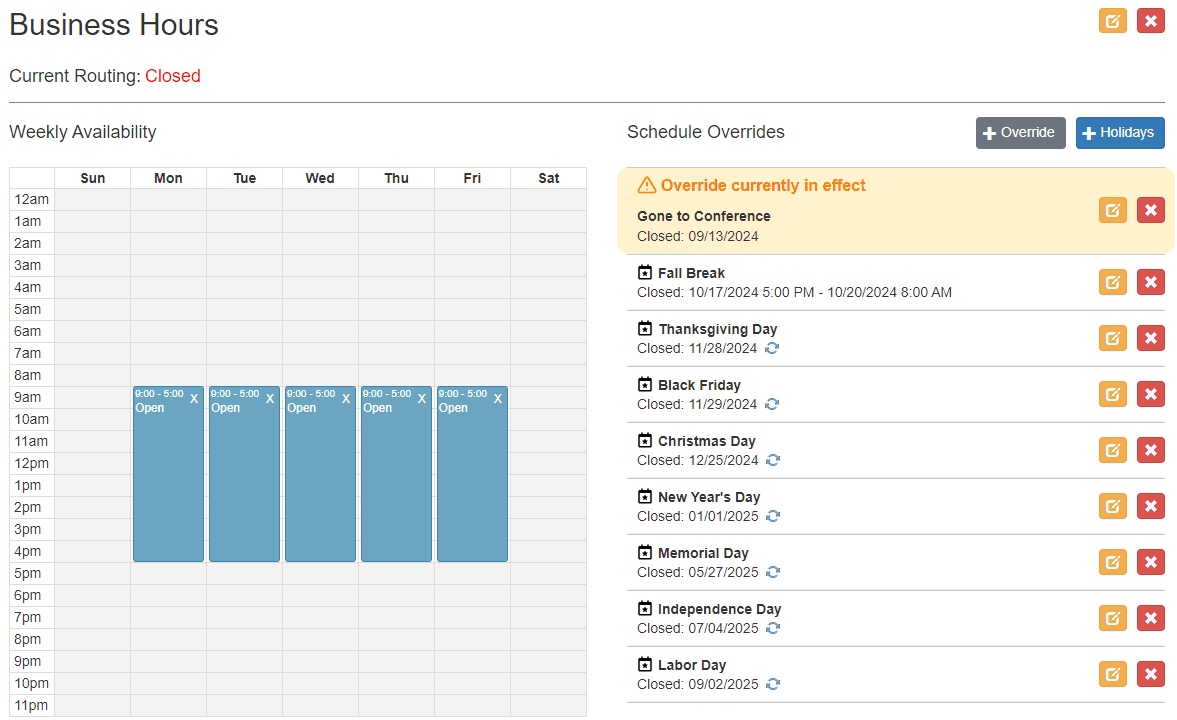
Create a Schedule
- Log into admin.mangovoice.com as an Administrator.
- Click Schedules on the left.
- Click the blue New Schedule button.
- Enter a Name for the schedule.
- Optionally, add a Description of the schedule.
- The Time Zonewill default to the PBX's Time Zone, but you can select a different one.
- Click Save Schedule.
Adjust Open Hours (Weekly Availability)
Add Open hours to a day
- Click and hold on the start time and drag down to the end time.
- Click OK on the popup asking New Schedule Entry?
- The page will refresh and a new Open box for those hours has been created.
Adjust the hours of a day
- Click and drag from the middle of a box to move it around.
- Click and drag from the bottom to adjust the length of the Open box.
Delete Open hours
- Click on the white X in the upper right-hand corner of the Open box.
Add Holidays
Holidays are overrides with the closed date already defined for you.
- Click the blue Holidays button on the right.
- Select the Holiday(s) that you would like to add.
- Click Add Holidays.
Note: The days and closed hours of the holiday can be adjusted later. Once added, they appear in the Schedule Overrides list.
Add Custom Overrides
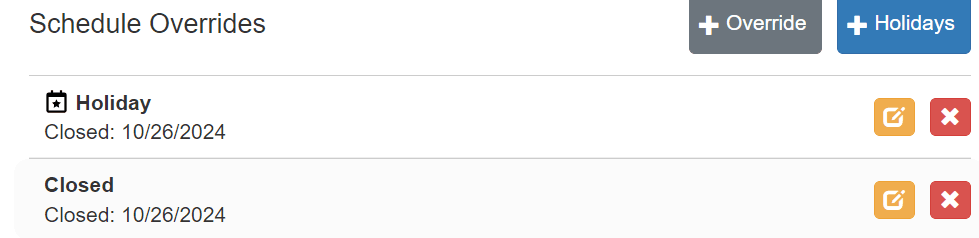
Any overrides that are currently in effect will be highlighted in the Schedule Overrides list.
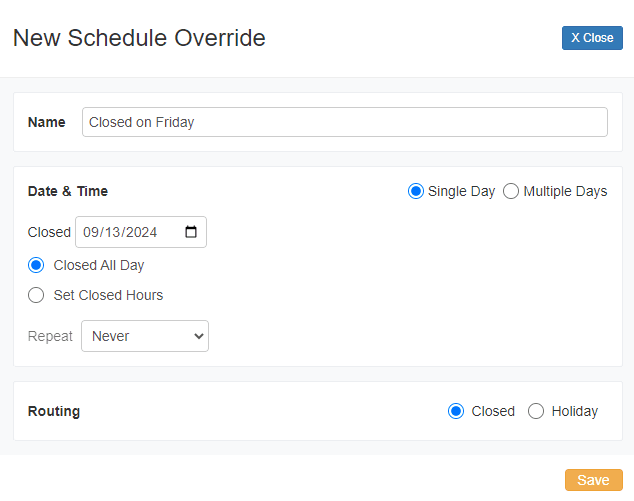
Date & Time
- Single Day will only show the Start Date.
- Closed All Day will start/end the override at midnight.
- Repeat options: Never, Daily, Weekly, Monthly, Yearly.
Routing
Determines which path the Schedule object in the Switchboard will use for calls during this override.
Note: Overrides added as Holidays will follow the Holiday path when in effect; otherwise they will follow the Closed path.
Common Examples
I want to be closed for just this Friday
- Click Override.
- Leave Single Day selected.
- Set the Closed date to the upcoming Friday.
- Leave Closed All Day selected.
- Leave Repeat set to Never.
- Leave Routing set to Closed unless you would like calls on this Friday to follow the Holiday path.
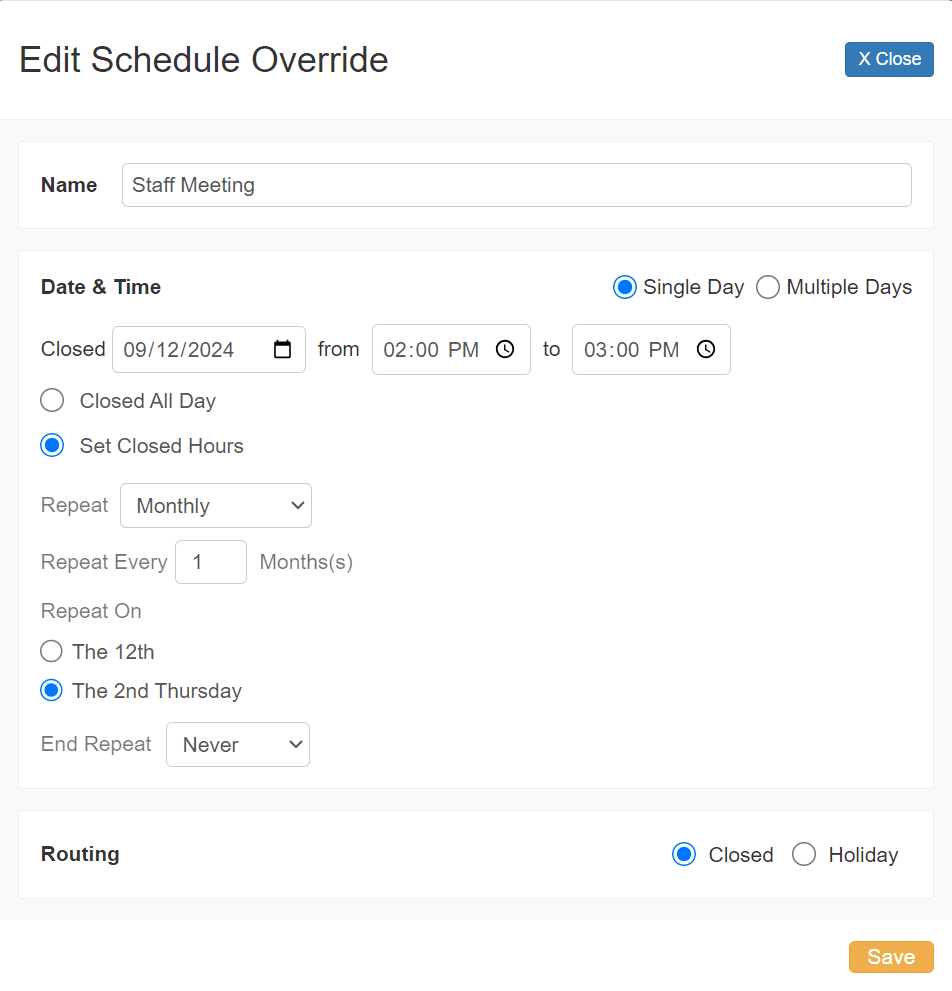
I want to be closed for an hour every 2nd Thursday for a Staff Meeting
- Click Override.
- Select Single Day.
- Set the Start Date to the 2nd Thursday of the month.
- Click Set Closed Hours and set the time to be closed.
- Set Repeat to Monthly.
- Set Repeat On to The 2nd Thursday.
- Set End Repeat to Never so that this override never expires.
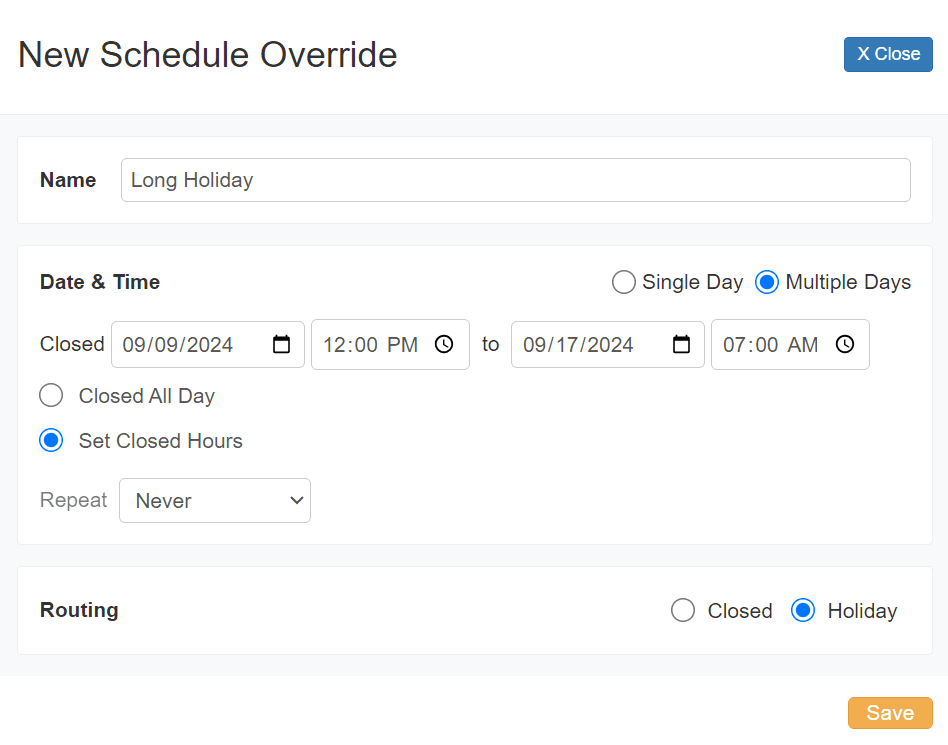
I want to close for half a day to start a week-long holiday
- Click Override.
- Select Multiple Days.
- Set the Start Date and Time you would like to start the closure.
- Set the End Date and Time when you want to stop the override and go back to your normal schedule.
- Optional: Set Routing to Holiday if you would like to play a special voicemail greeting during this override. For details, see How to Assign a Sound Clip to a Voicemail Greeting.
I want to be closed for lunch
Do you want to play a lunch-specific voicemail greeting that says you're closed for lunch?
No — Use the existing Closed greeting
- Set your Weekly Availability so that there is a gap during lunch. See Adjust Open Hours (Weekly Availability) above.
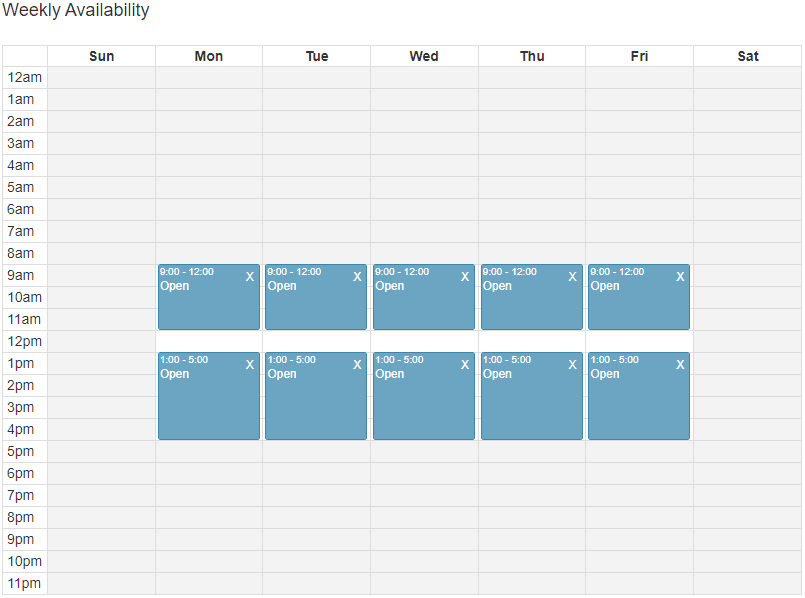
Yes — Play a lunch-specific greeting
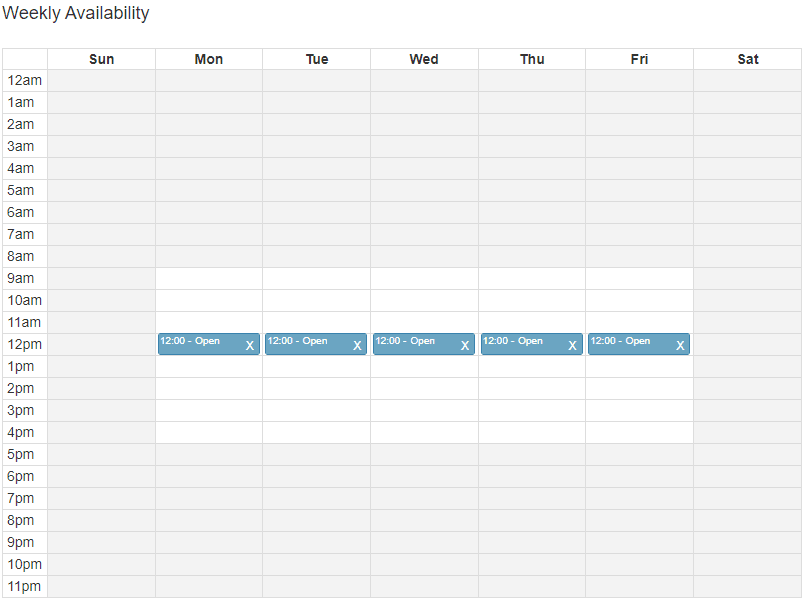
- Don't adjust your main Business Hours schedule and create a new schedule labeled Lunch.
- Set the Weekly Availability of the Lunch schedule to the hour(s) that you're closed for lunch.
- In the Switchboard, add a new Schedule object between the Business Hours Schedule and Transfer and Continue.
- The Open path goes to a new Leave Voicemail object and select the message you want to play during lunch. Set the Extension to your voicemail box.
- The Closedpath goes to Transfer and Continue so that the phones ring when you're not on lunch.
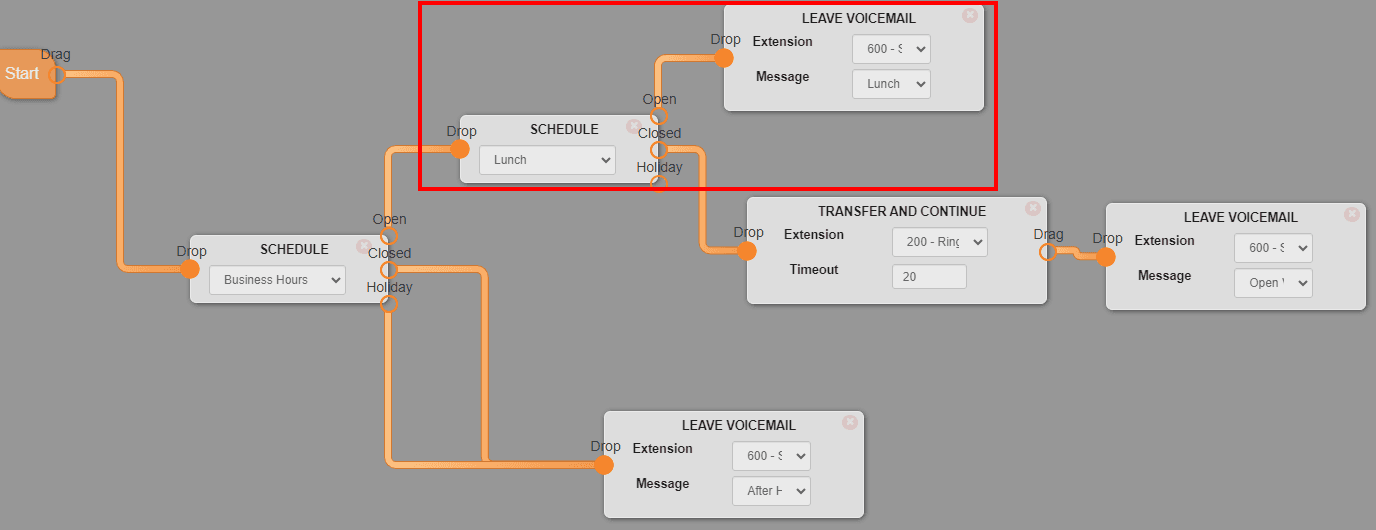
Note: Do not add any overrides to the Lunch schedule. Holidays and Overrides should be added to your main Business Hours schedule instead.
Resources: Generic message for lunch · Record your own message
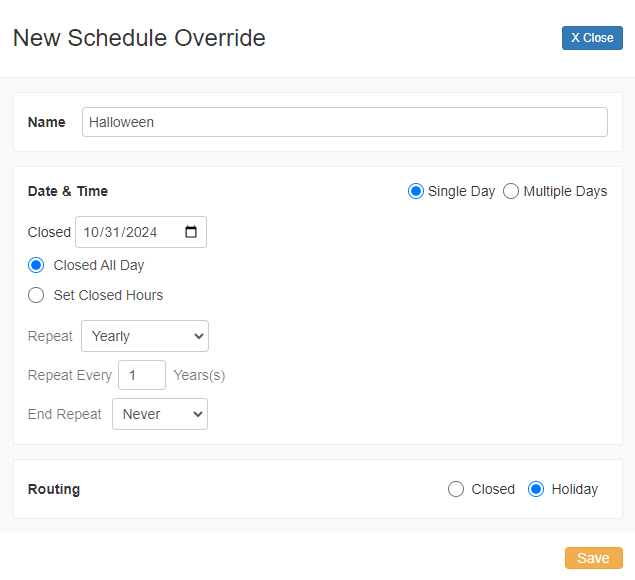
I want to observe a Holiday that isn't in the Holidays list
- Click Override.
- Give the override a Name.
- Leave Single Day selected (unless you want to be closed for multiple days).
- Set the Closed date.
- Set Repeat to Yearly.
- Leave End Repeat set to Never.
- Optional: Set Routing to Holiday.
How do I add multiple Holidays at once?
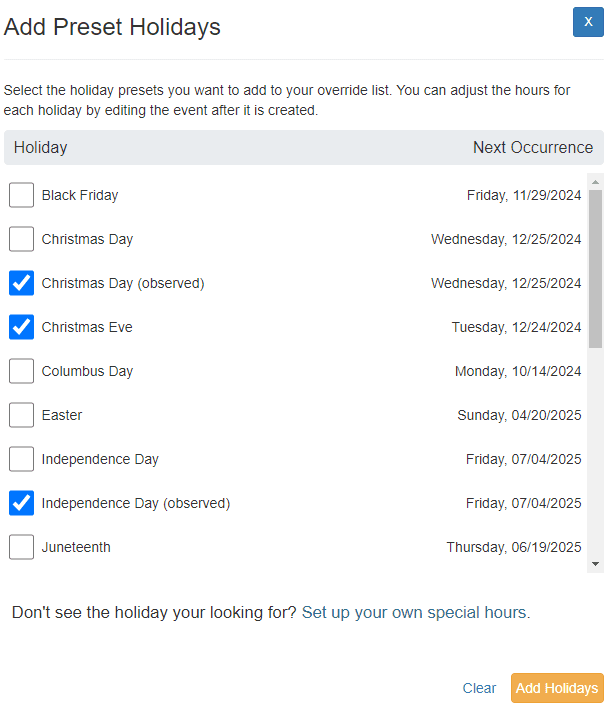
- Click Holidays.
- Scroll and click every holiday that you would like to observe.
- Click Add Holidays.
Note:Every holiday will be added to the Overrides list as its own override. This means they can be adjusted after they're added — for example, you can add Christmas and then edit the override so that you are always closed for a week after Christmas. Observed holidays will kick in on Monday if it falls on a Sunday.
I want the answering service to answer calls from 5-8pm on weekdays as well as the weekend
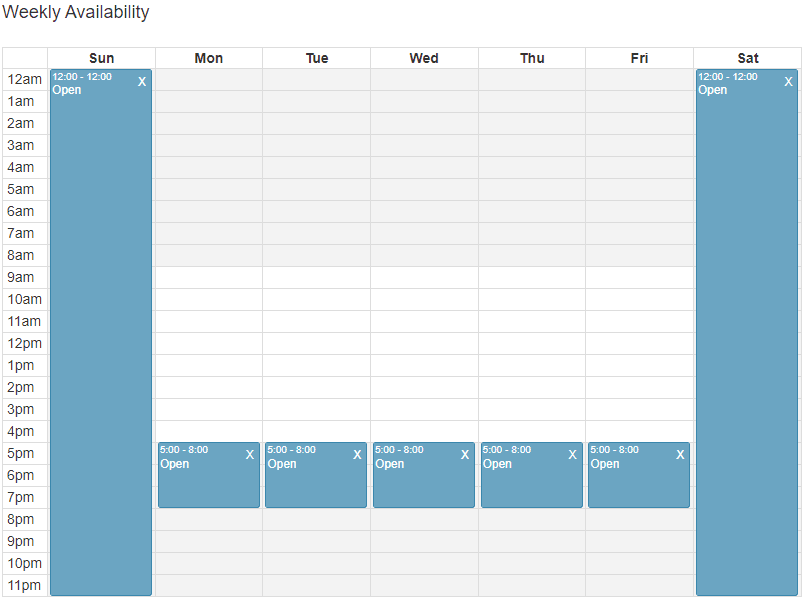
- Don't adjust your main Business Hours schedule and create a new schedule labeled Answering Service.
- Set the Weekly Availability of the Answering Service schedule to 5-8pm M-F and all day on Sat and Sun. See Adjust Open Hours (Weekly Availability) above.
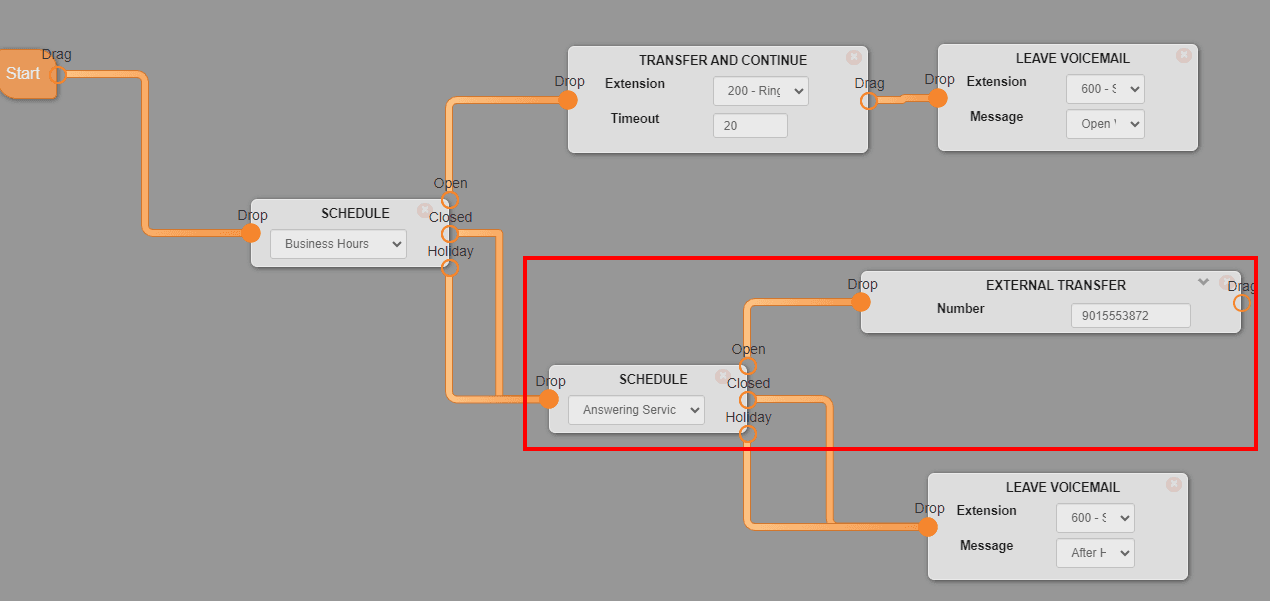
- In the switchboard, add a Schedule object, select Answering Service and put it after the Closed path of your Business Hours Schedule.
- Add an External Transfer object with the following:
- Number— Answering Service's phone number that they provided you.
- Timeout— 120 (ensures that the answering service handles the voicemail if they don't answer for some reason).
- Pass Through Caller ID — Checked.
- Require 1 to connect — Unchecked.
- Optional: There's an arrow in the upper right-hand corner of the External Transfer object that will minimize it so that the switchboard looks cleaner.
In summary
- When a call comes in, it will first check your Business Hours schedule.
- If it's Closed, then it will check your Answering Service schedule.
- If that's open (between 5-8pm on weekdays or anytime on the weekend) then it will forward the call to your answering service.
- Otherwise, it will go to the office's voicemail box like normal.