
How to Assign a Sound Clip to a Voicemail Greeting
Ensure that the number you are using is pointed to the correct Switchboard. Then assign your uploaded sound clip to a Leave Voicemail object so callers hear the right greeting.
Note: Be sure to upload a voicemail message sound clip first.
Steps
- 1
Select Switchboard from the left menu.
- 2
Select the Switchboard that is associated with the desired extension voicemail.
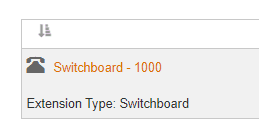
Example: the Switchboard associated with the extension. - 3
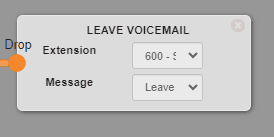
Add a Leave Voicemail object, or use an existing Leave Voicemail object.

- 4
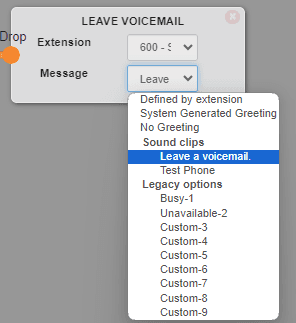
Select the Message dropdown to find the desired sound clip.
- 5
Select Save to save the new Switchboard configuration.
Need to add the audio first? See How to Upload a Sound Clip or How Do I Record a New Sound Clip.
Still need help?
If the sound clip isn't appearing in the Message dropdown, confirm it was uploaded to the PBX and that your number points to the correct Switchboard.
Visit the Support Center