
1 min read·Last updated: 04.29.2024
Dynamic Sound Clip Recording
Dynamic Sound Clip Recording lets you assign a feature code to a sound clip so you can re-record it directly from your business phone whenever you need to.
Note: Sound clip formats can be either MP3 or WAV.
Dynamic Sound Clip Recording is great for
- Daily updates such as discounts and newly added plans
- Emergency changes for voicemails due to weather or unplanned occurrences
- Easy adjustment to holiday-specific voicemails
- Changing on-call voicemails or sound clips
How to assign a feature code to an existing sound clip
- Select Sound Clips from the left sidebar of your Mango Portal.
- Find the sound clip you want to update. A feature code is a star code that can be dialed to re-record that specific sound clip. If a clip has no code assigned, its Feature Code will show as N/A. Select the orange edit button to assign one.

- In the Edit Sound Clip window, open the Feature Code dropdown and choose an available star code (for example, *103).
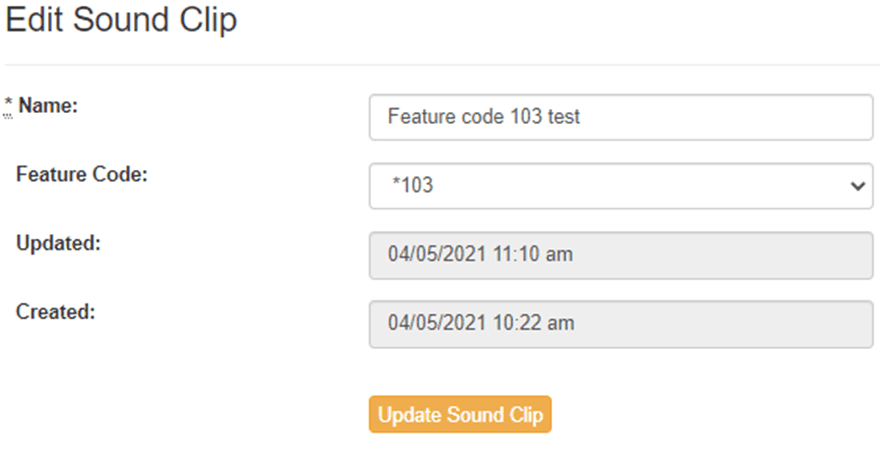
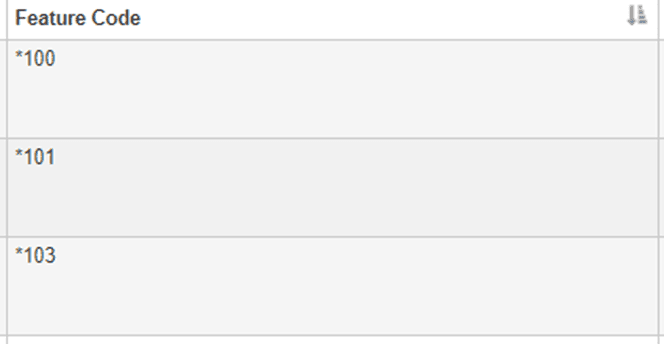
Feature codes are assigned from a set of available star codes, such as *100, *101, and *103.
- Click Update Sound Clip to save the assigned feature code.
How to re-record with a feature code
- On the Mango phone, dial *(feature code) — for example, *100–*109.
- It will play the existing sound clip.
- Press 3 to record over the existing clip.
- Press 2 to save your recording.
For help recording an initial sound clip, see:
How do I get help?
- Mango Voice Support — Phone: (435) 466-2646
- Mango Voice Support — Email: support@mangovoice.com