
How do I turn on / off notifications on the Web App? (Mac Instructions)
There's a lot of complexity to notifications — we'll help clarify how to get them turned on or off (whatever you prefer).
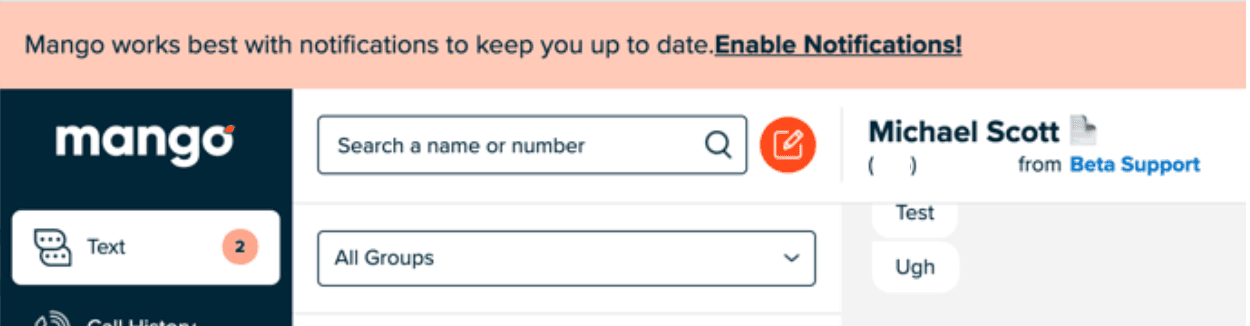
How do I turn on Notifications on Web App (Mac & Windows)
The easiest, easiest, easiest way to turn on notifications is to accept them when you're prompted the first time! If you've dismissed them, or clicked Enable Notifications and then blocked them, it gets more complex — but have no fear, we'll show you how to turn them on.
How do I turn on Notifications if I previously dismissed or blocked them? (Mac & Windows)
You've probably seen the Enable Notifications banner that pops in from the top by now. (You had to click that to turn on notifications.) You might have been in the middle of something, so you dismissed it. How do you turn them on now?
- 1
Head to the bottom left corner where your account name is and click on it.
- 2
Click on Settings.
- 3
Click on Notifications.
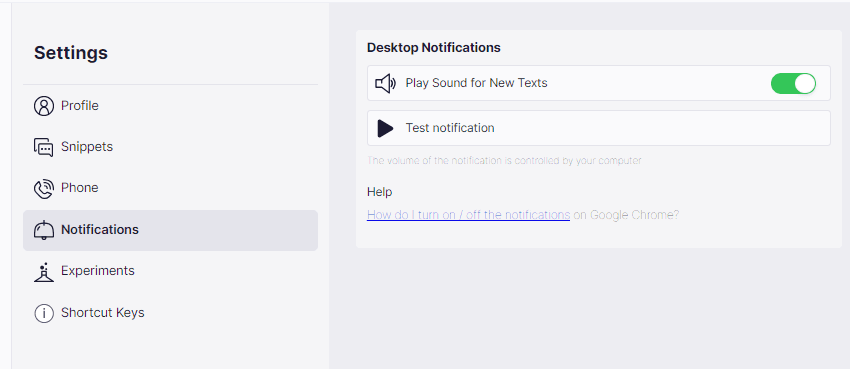
If you've dismissed the notifications banner in the past, you should see a message that says, “You've blocked notifications. You'll need to go into your browser settings to switch this back on.” You'll notice that Play Ding…is technically on but disabled — you can't click it. This is because Enable Notifications has been dismissed or turned off. Have no fear, we'll conquer this together!
Chrome (Mac and Windows)
First things first, exit the settings screen on the Web App.
In the top left of the browser you'll see a small lock icon. Click on it. You can see how this person has these turned off — no one will get sound alerts and operating system notifications when this is off, so flip that switch to on!
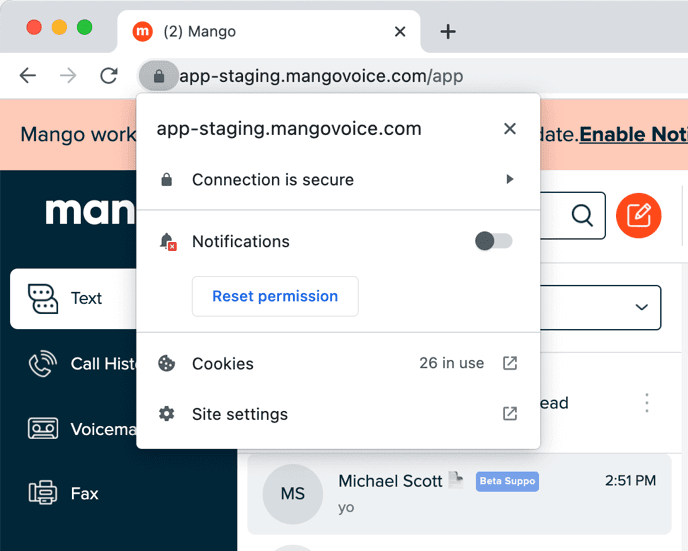
After that, you'll need to reload your web app to make the change live. Send yourself a text from your cell phone to the office text number — you should get an operating system notification and hear a “sound”!
Firefox
You'll need to go deeper into the Firefox settings to turn on notifications. If you go to the Mango Web App settings, you'll see the same notifications text you would have on Chrome (see the Settings Screenshot above).
- 1
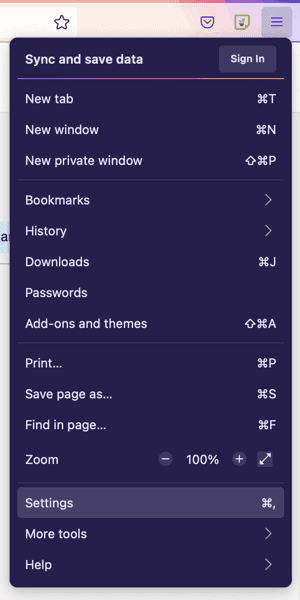
Click on the hamburger (three-line) icon on the far right of the Firefox browser.
- 2
Near the bottom, click on Settings.
- 3
Firefox opens a new Settings tab. In the search box at the top middle, search Notifications, then click Notifications.
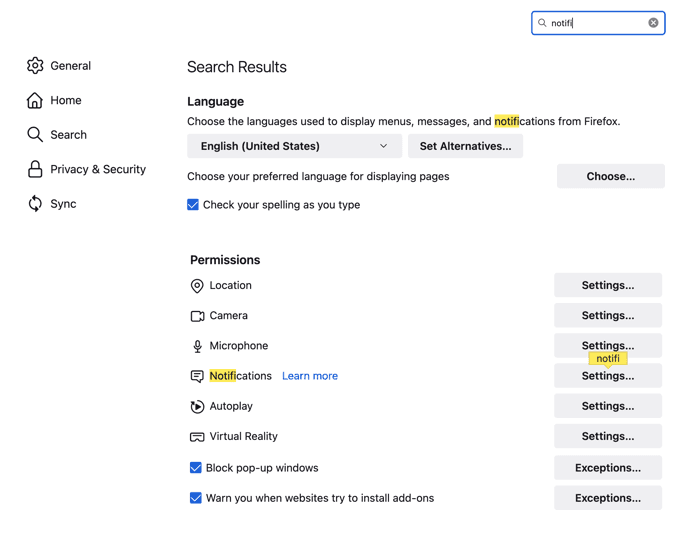
Here's where you can toggle the app.mangovoice.com notifications from Block to Allow. Head back to your web app and reload it. To check quickly whether your notifications are on, click the settings icon Firefox shows in the search area at the top of the browser.
Safari
Sadly, we're not supporting Safari at this time. You'll need to download Firefox, Chrome (or Chrome offshoots like Brave) for notifications to work.
I'm still not getting notifications! (and other questions)
At this point, if you're not getting notifications, the issue might be on a system level, so we'll walk you through how to check it out. These instructions are Apple Mac specific — if you're looking for Windows instructions, click here.
Apple has a lot of areas where you can turn off your notifications or mute them through Do Not Disturb mode. The first area to check, to see if you're even getting notifications, is the top right of your screen. Click on the Date and Time to open your notifications drawer.
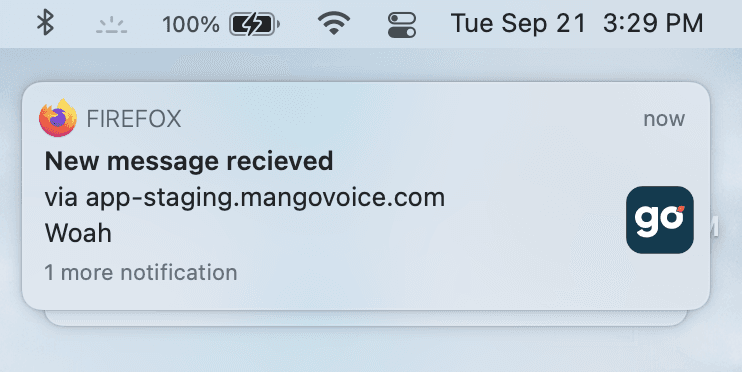
If you don't see any notifications near or at the top, then you have them blocked somewhere. If you do see them but didn't hear a sound or see them slide in, check Do Not Disturb mode. You can do this by clicking the two-toggles icon to the immediate left of the Date and Time.
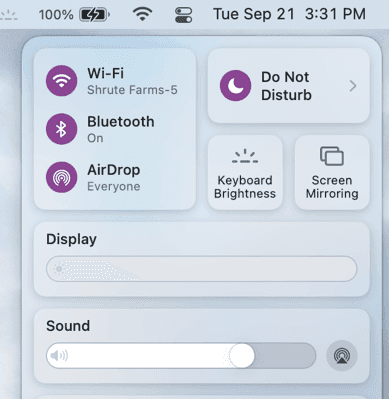
If Do Not Disturb is on, it will hide all notifications. You can toggle it off by clicking the moon itself, or click anywhere else on the Do Not Disturb box to open another menu and select Always Onso that it's off.

I'm not getting any notifications at all
Let's take a peek at your System Preferences, where your operating system notifications are set up.
- 1
Click on the Apple logo in the top left corner.
- 2
Click on System Preferences.
- 3
Click on Notifications. (If you're having a hard time finding it, search Notifications in the top right of the settings window.)
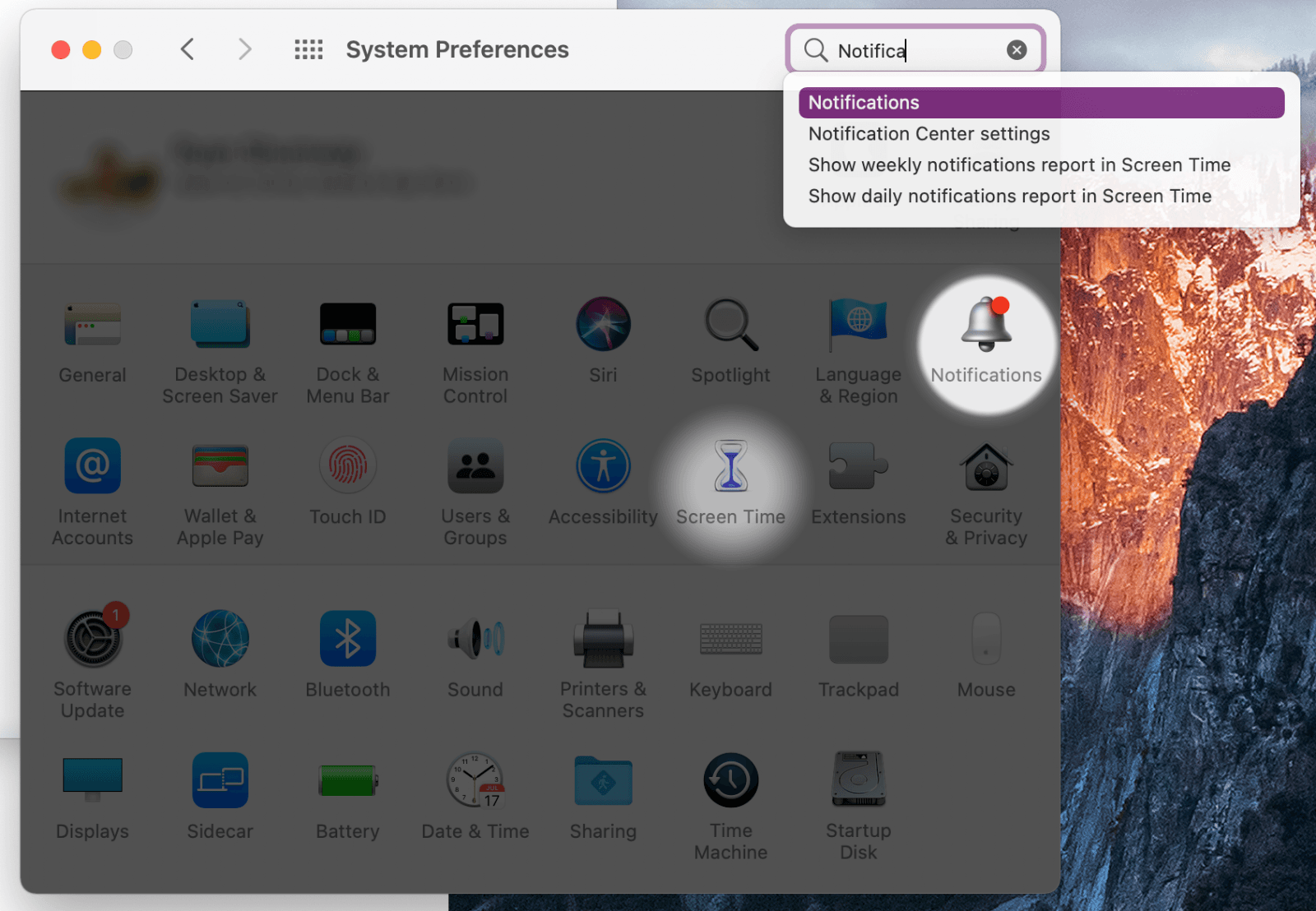
Find the browser you're using (Firefox, Chrome, Brave — not Safari). You need Allow Notifications turned on if you want to receive notifications. Go ahead and select Banners(they disappear eventually; Alerts don't).
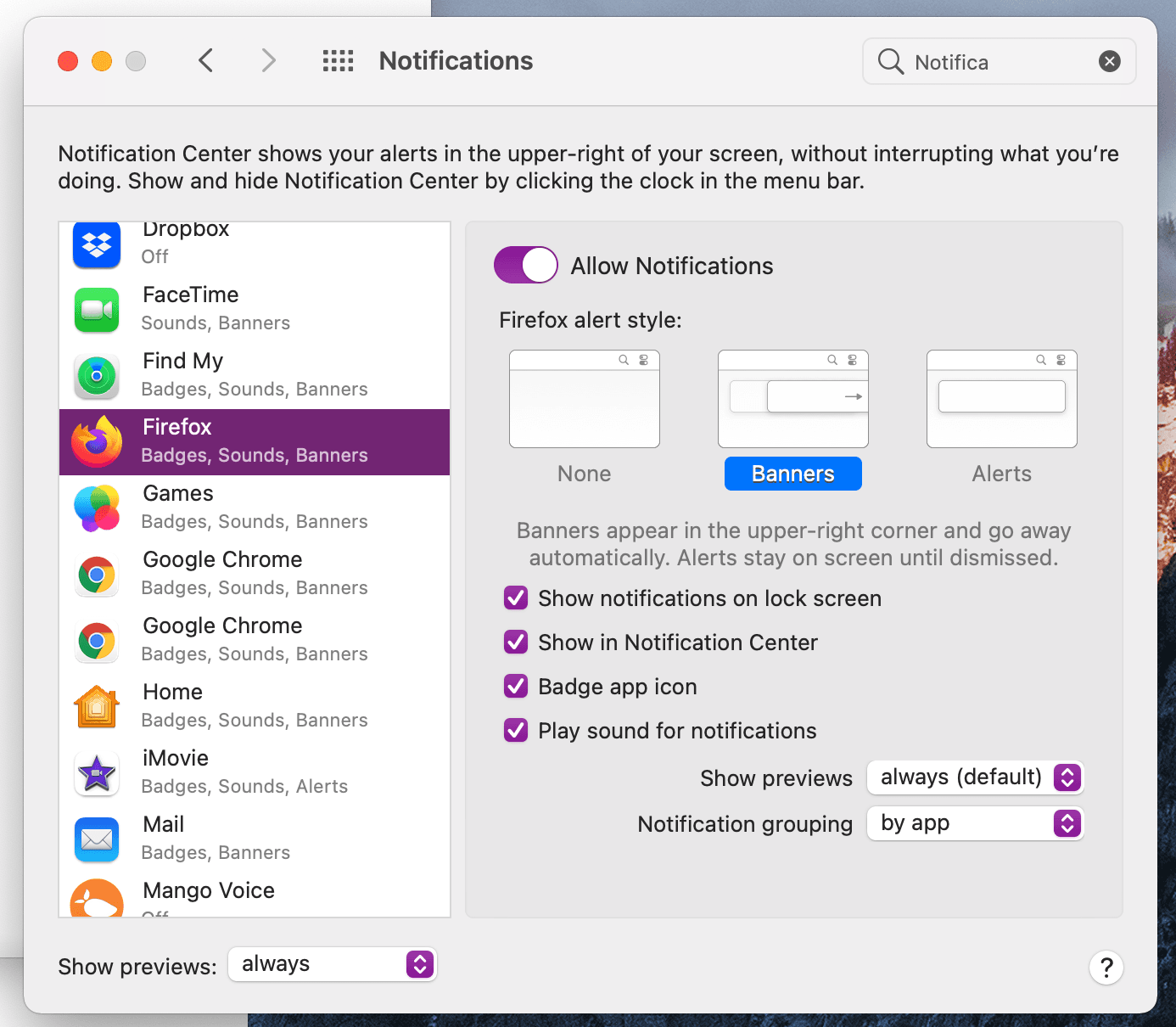
Below the checkbox that matters most is Play sound for notifications. If that's off, you won't hear a notification sound.
Further reading
If you want to do more reading, see this article on how to turn notifications on or off from our friends at Google.
Still need help?
If you've enabled notifications in both your browser and macOS System Preferences but still aren't getting alerts, reach out and we'll help you track down the setting that's blocking them.
Visit the Support Center