
Yealink AX83H Initial Setup Guide
Follow these steps to perform the initial setup of your Yealink AX83H handset. Once setup is complete, contact Mango Voice Support to finish connecting your device.
Power on the device
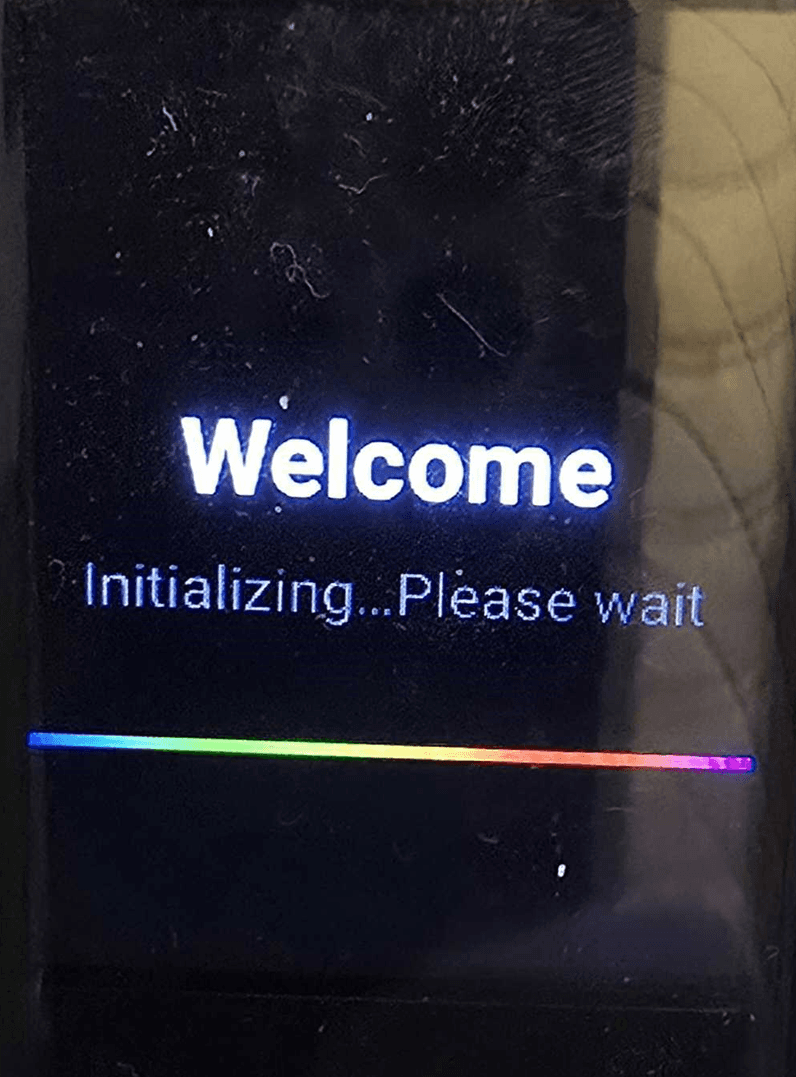
Connect the charging cradle to power, insert the battery into the handset, and power on the device. You will see a “Welcome — Initializing…Please wait” screen.
Select your language
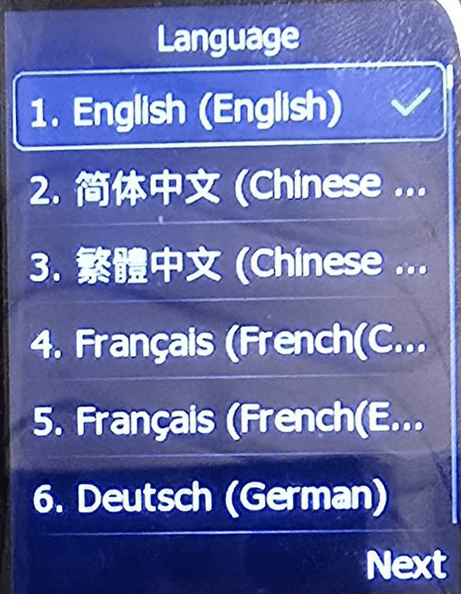
Choose your language from the list (English is selected by default), then press Next.
Open Wi-Fi settings
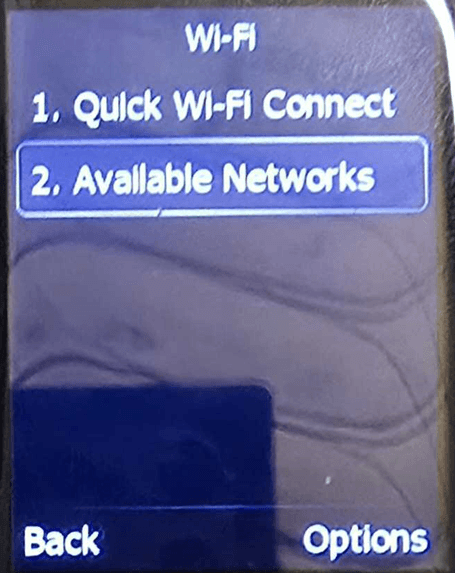
Select Wi-Fi, then choose Available Networks.
Select your network SSID
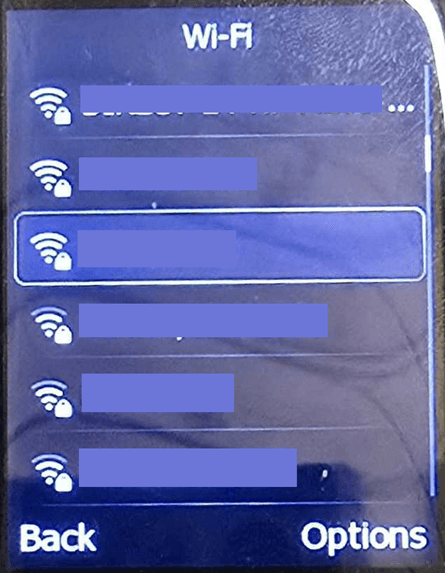
Choose your network SSID from the list of available networks.
Press OK
Press OK on this screen to continue to the password entry.
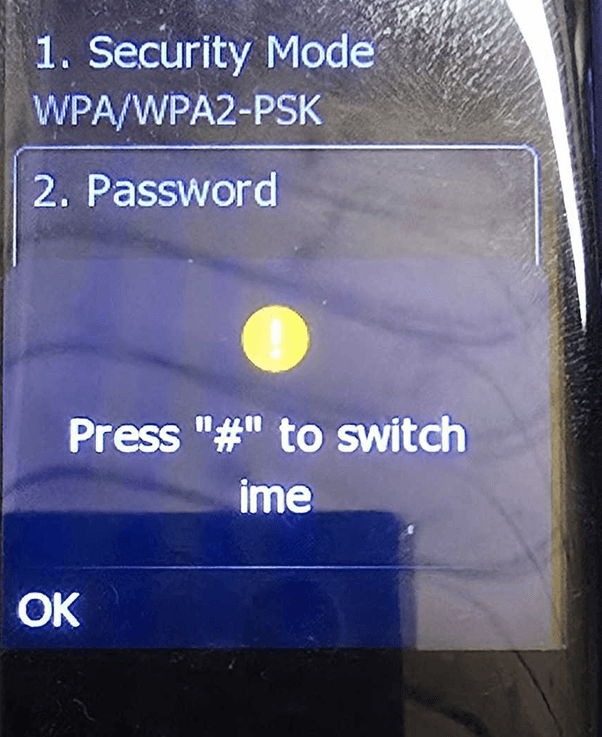
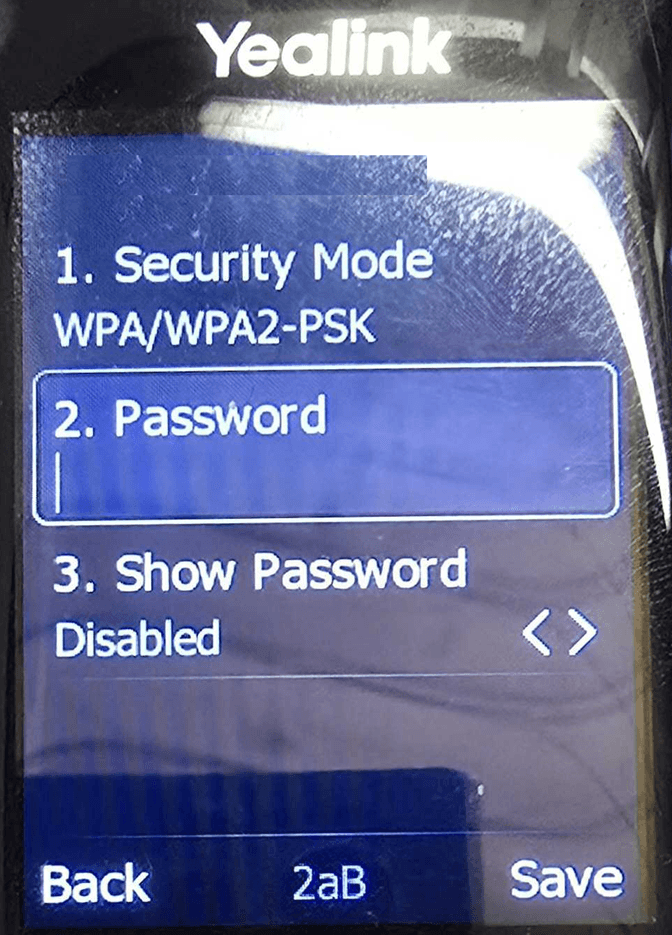
Enter your Wi-Fi password
Enter your Wi-Fi password using the device's number pad, then press Save.
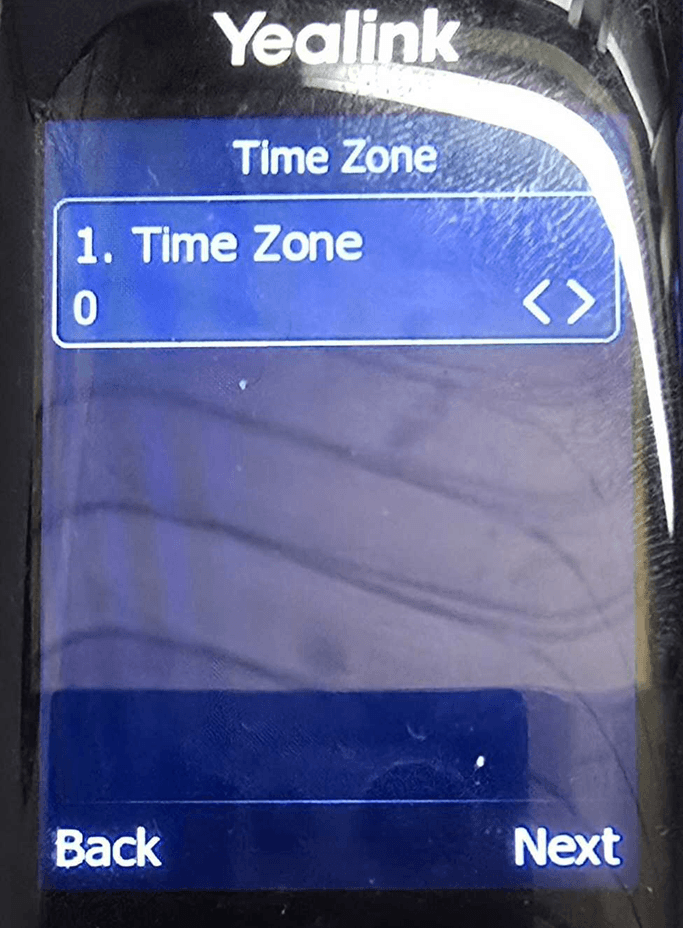
Set the time zone (or skip)
Set the time zone or skip this step. This will automatically update when the device is connected to Mango Voice.
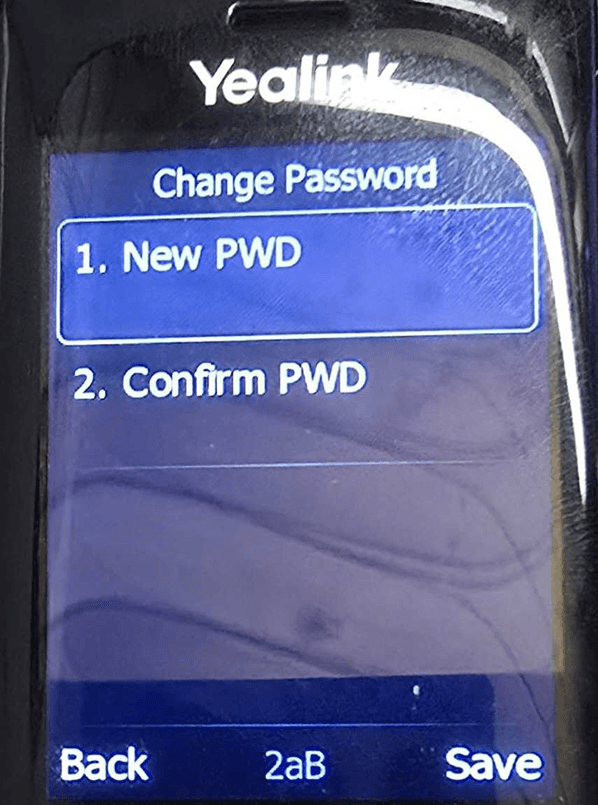
Set a temporary device password
Enter a temporary password for the device: 1234. Press Save when finished.
How do I get help?
- Mango Voice Support — Phone: (435) 466-2646
- Mango Voice Support — Email: support@mangovoice.com