
How to Send Voicemail to Email
You can have Mango Voice deliver voicemails left on an extension straight to one or more email inboxes, with the option to attach the recording and automatically save or delete it once emailed.
Note: Your account must have administrator access to set this up. Log into admin.mangovoice.com to begin.
Steps
- 1
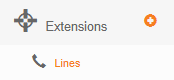
Select the plus button next to Extensions.

- 2
Select Lines.
- 3
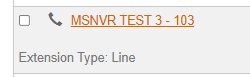
Select the extension you want to modify from the list. This is the extension where voicemails are left on your switchboard.
- 4
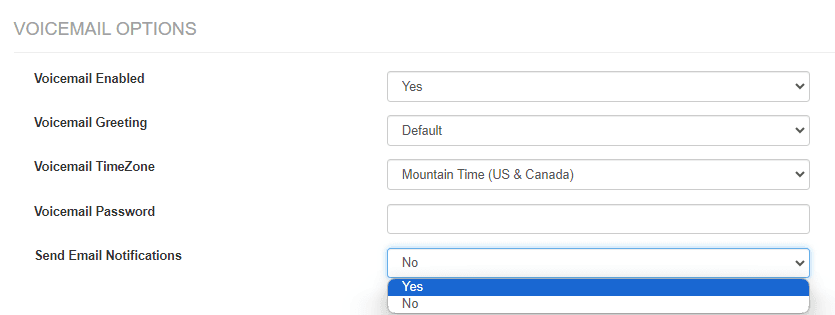
Scroll down the page to Voicemail Options and change Send Email Notifications to Yes.
- 5
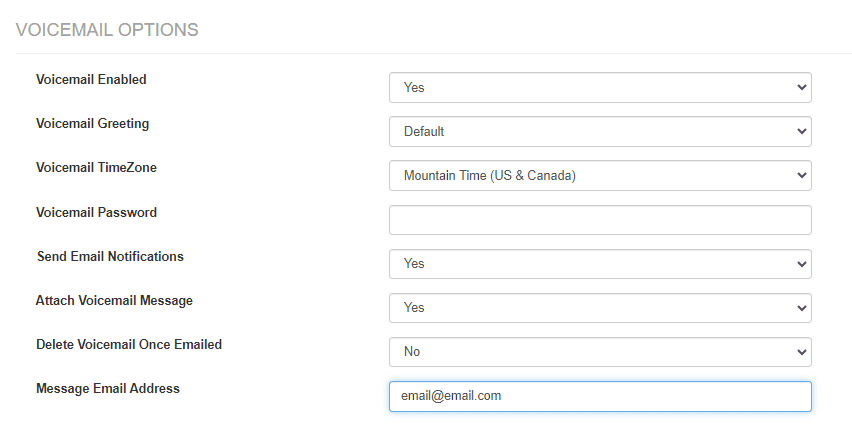
Select Yes to Attach Voicemail Message, choose whether to delete or save voicemails once emailed, then enter the email address or addresses you want to receive the voicemails.
- 6
Click Update Extension when finished to apply your changes.
Still need help?
If voicemails aren't arriving by email, double-check the address you entered and that Send Email Notifications is set to Yes on the correct extension.
Visit the Support Center