
Guides & Tutorials
How to Send a Fax with Mango Voice
2 min readLast updated: 01.28.2025
How to send a fax, and how to tell whether your fax has been sent or not.
How to Send a Fax with Mango's Web App
The steps below follow what is shown in the video.
Before you start: Make sure you are logged into the Web App, you have an internet connection, and your file is smaller than 5 megabytes.
- On the left side, click the Compose Fax icon.
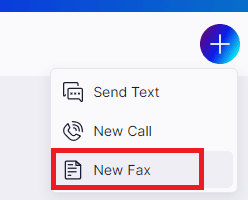
- An overlay will come over your screen, and a box will appear titled New Fax— this is the New Fax Modal. In it, select the fax number you are sending from and enter the number you are faxing to.
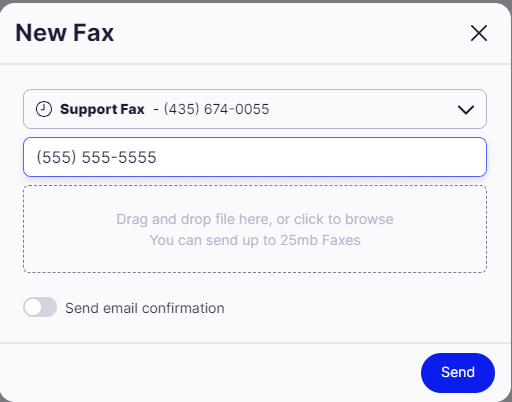
- Drag and drop the file into the box, or click the box to browse and select your file. If your file is in a supported format and 5 megabytes or less, it will upload.
- Click Send Fax.
- A box will appear in the upper-right of the screen letting you know that your fax has been queued.
Queued means there are a number of faxes going in and out of the Mango system and that your fax is lined up to be sent out.
Supported file formats
.png.jpeg.jpg.pdf.csv.txt.gif
Fax via email
- Make sure your email address is set up to send faxes with Mango Voice. If you are not sure, contact Mango support to verify by calling 435-GoMango.
- Compose an email to the number you are faxing @faxmango.com.5555555555@faxmango.com
Alternatively, you can send to Fax Number @fax.mangovoice.com.
5555555555@fax.mangovoice.com - Attach the file you are faxing and send the email.
That's it — enjoy faxing!
How do I get help?
- Mango Voice Support — Phone: (435) 466-2646
- Mango Voice Support — Email: support@mangovoice.com