
Guides & Tutorials
How to Forward Phone Calls (Call Forwarding)
3 min readLast updated: 09.02.2025
Call forwarding can be an extremely useful tool for times you may want to leave the office early or if the internet is down for any reason.
How to forward phone calls with Mango Voice
- 1Open the switchboard you want to forward.
- 2Click the + External Transfer box at the top of the screen.
- 3Insert the phone number you want to forward to in the Number section.
- 4Click and drag the line from Start to the new External Transfer box you just added.
- 5Click the green Save button in the top right.
Tips
- If you want the voicemails to stay on the cell phone, enter 120 in the timeout and uncheckthe “Require 1 to connect” box. This will guarantee the call to stay on your cell phone.
- If you want the voicemails to go to your Mango Voice voicemail, put the timeout to 20–30 seconds, checkthe “Require 1 to connect” box, and connect the Drag circle on the External Transfer to the desired voicemail box.
See the screenshot below for an example of how call forwarding would look when completed.
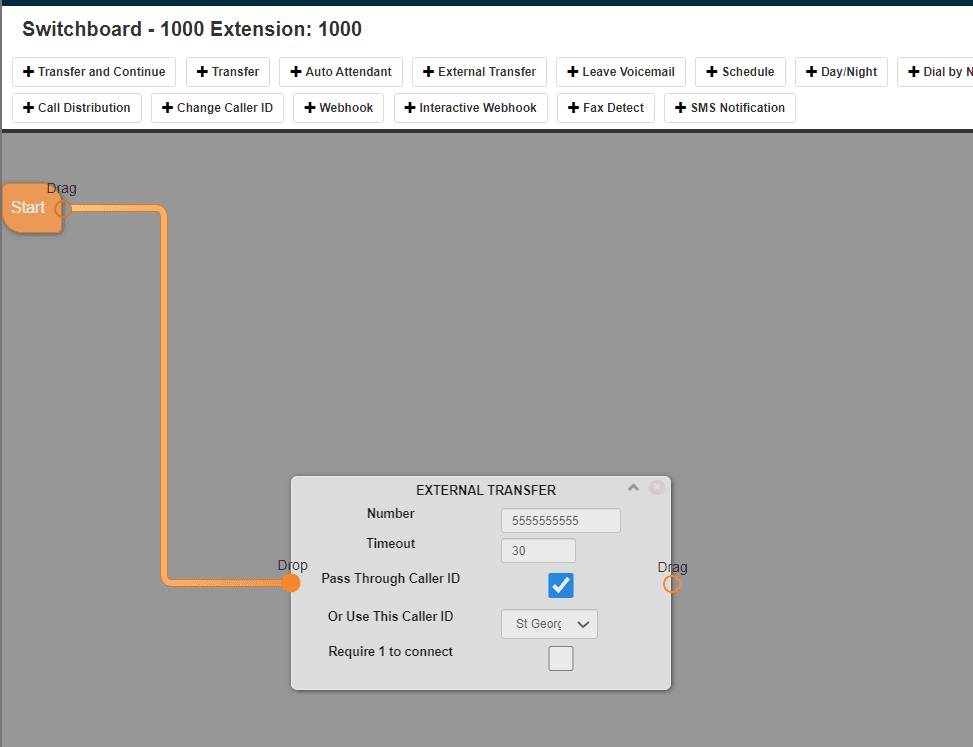
For more information about the Switchboard External Transfer Module, see the External Transfer Module documentation.
Important notes
- When an extension is called as part of a ring group, call forwarding on that extension is ignored.
- The phone must be active and registered to the PBX for call forwarding to take effect. If the phone is not active, calls will be sent to the voicemail of the phone's extension. Voicemail must be set up — if voicemail is not set up, that call will hang up.
Edit call forwarding on a Yealink device
To turn call forwarding on or off on a device, press the Transfer button. One of two things will happen:
- It will pull up the call forwarding page and have an option to switch Always Forward from On to Off.
- There will be a little red arrow that will either disappear or reappear once this setting has been configured.
If this is the case, here is how to turn it off:
- 1Go to Menu.
- 2Select Features.
- 3Select Call Forwarding.
- 4Select Always Forward and it should pull up the forwarding page.
- 5Turn off Always Forward.
- 6Remove Forward to:
- 7Remove On Code if applicable.
- 8Remove Off Code if applicable.
- 9Save.
The Forward to: field is the cell number to enter that you want calls to be forwarded to.
How do I get help?
- Mango Voice Support — Phone: (435) 466-2646
- Mango Voice Support — Email: support@mangovoice.com