
How to Enable Call Recording
You can enable or disable call recording across your entire Mango Voice system or on a per-extension basis. Recordings are stored in your Call Logs, where you can play them back at any time.
Before enabling, always check your state compliance laws. Depending on your state's laws you may need a sound clip informing callers that calls are being recorded, and you may need to verbally inform customers on outbound calls. Please consult your company's attorney for detailed information about remaining compliant.
Enable Call Recording on Your System
- 1
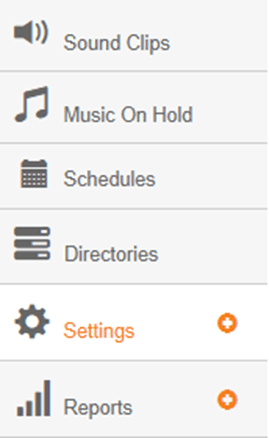
In the Admin Portal, go to Settings on the left side menu.
- 2
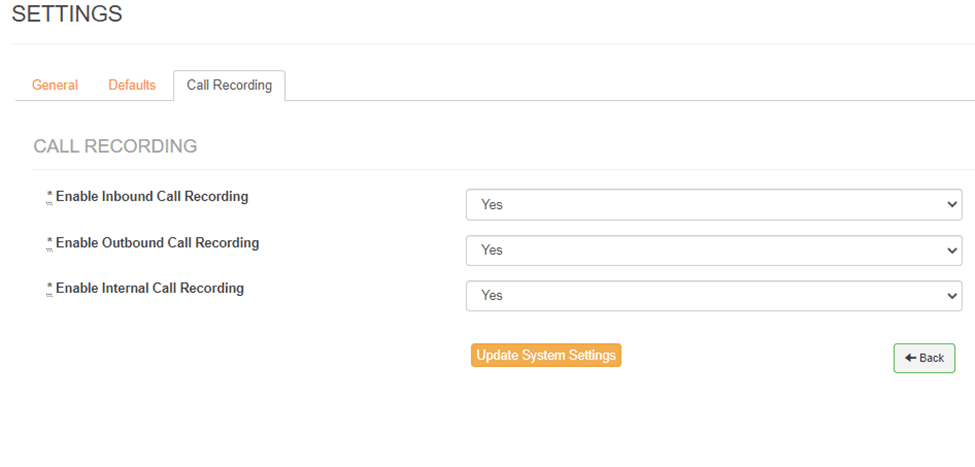
Select the Call Recording tab from the three tabs, then enable or disable recording based on Inbound, Outbound, or Internal calls. Click Update System Settings to save.
Access Your Call Recordings
- 1
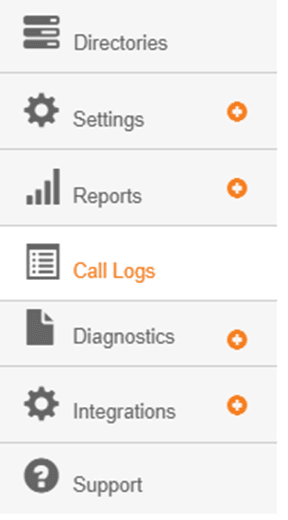
Open Call Logs from the left side menu.
- 2
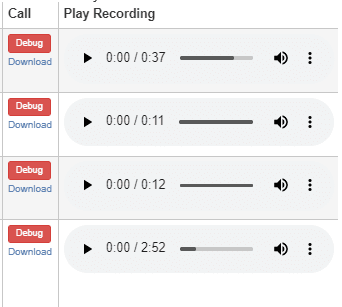
Press the Play button to listen to recorded calls.
Set Call Recording for Individual Extensions
Navigate to Extensions > Lines > Extension > Advanced > Call Recording. The options are:
- System Defined— uses the setting defined in the previous steps
- Yes
- No
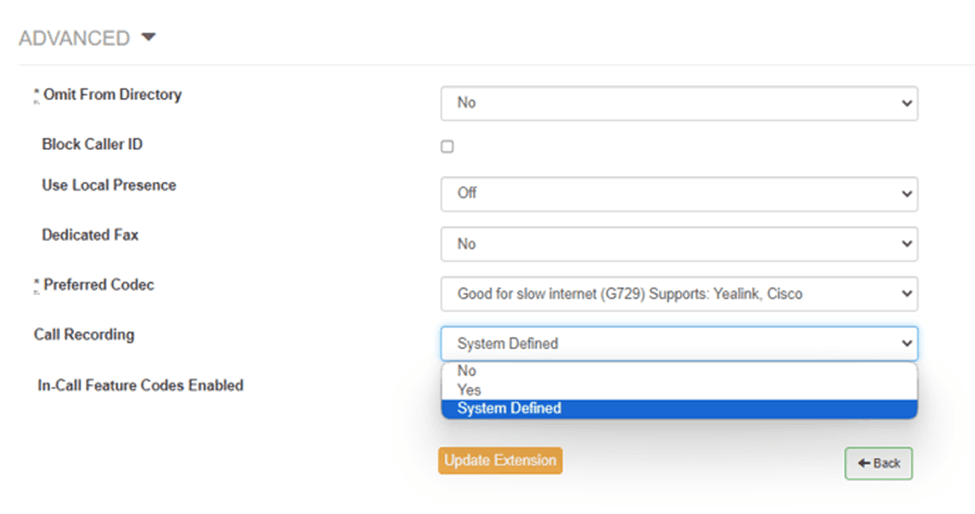
Once you've made your selection, click Update Extension to save.
Still need help?
If you have questions about enabling call recording or staying compliant with your state's laws, reach out and we can assist you further.
Visit the Support Center