
How to Download and Run AnyDesk
AnyDesk is the preferred remote support client for Mango Voice.
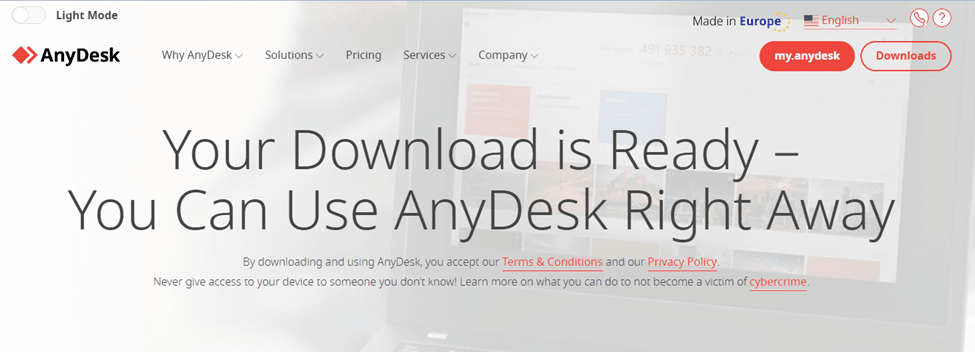
Download AnyDesk
Note: The link opens in a new tab. Once the download begins, click back to this tab.
You will be redirected to this page where your download will begin.
Run AnyDesk on Windows
- 1
Press Windows Key + R.
- 2
Type Downloads to open your Downloads folder.
- 3
Double click AnyDesk.
- 4
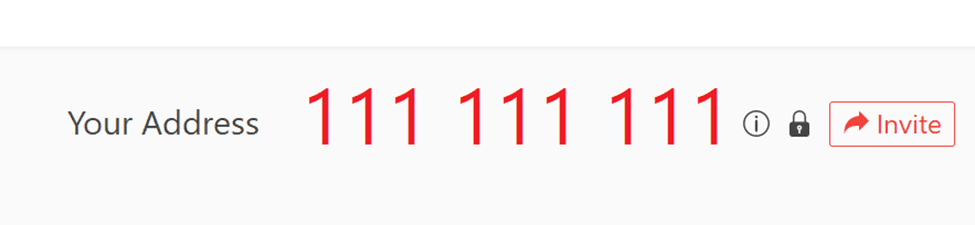
Give your technician Your Address.
- 5
Accept the remote connection request.
Run AnyDesk on Mac
- 1
Press Command + Spacebar.
- 2
Type Finder.
- 3
Select the Downloads folder.
- 4
Double click anydesk.dmg.
- 5
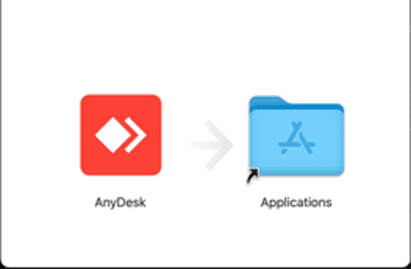
Install and then drag the AnyDesk icon to the Applications folder.
On macOS you will need to grant security permissions. Follow the steps in AnyDesk's macOS security permissions guide.
- 6
Open AnyDesk and provide Your Address to your technician.
- 7
Accept the remote connection.
Still need help?
Once AnyDesk is running, share Your Address with your Mango Voice technician so they can connect and assist you remotely.
Visit the Support Center