
3 min read·Last updated: 04.25.2024
How to Create & Configure a Conference Room With Mango Voice
Conference Rooms allow multiple people to call in and talk to several people at the same time. The conference calls may be designed to allow the called party to participate during the call, or the call may be set up so that the called party merely listens into the call and cannot speak.
Access Conferencing
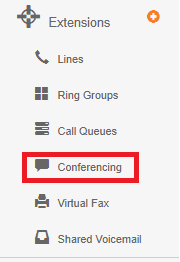
- Select the + by Extensions in the left side menu.
- Select Conferencing.
New Conference Room Setup
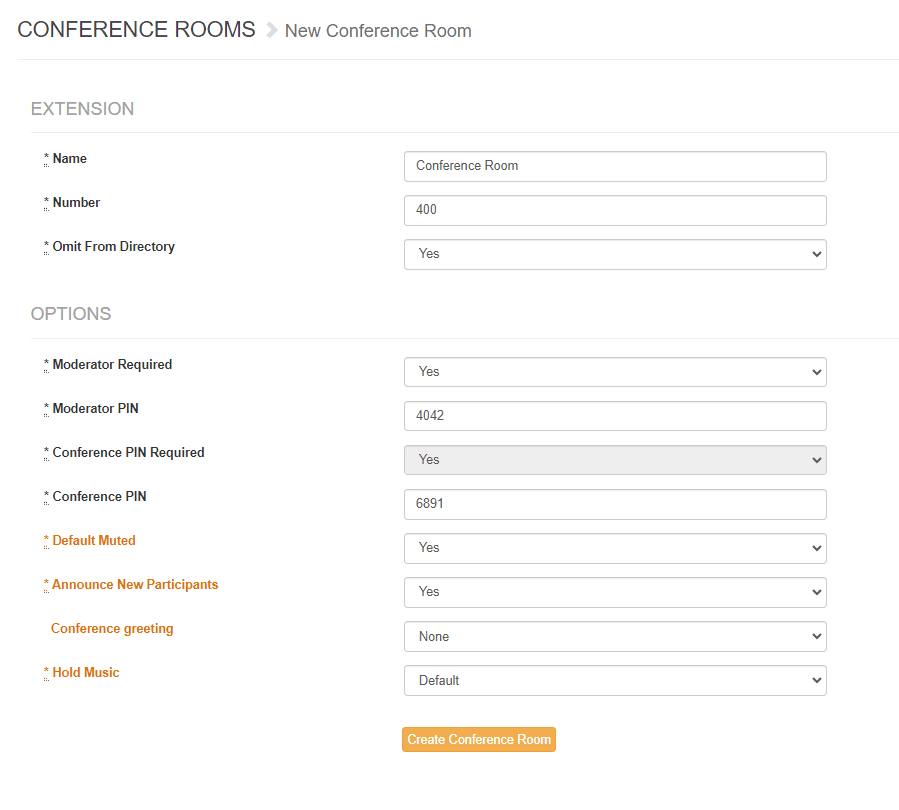
Definitions
- Name
- This is the name that you want this conference to be seen as across the Mango system. It can be helpful to be descriptive when naming (East Conference Room, West, Big, Little, etc.).
- Number
- Conventionally Mango Voice uses the 400–499 range for conference rooms, but any number may be used.
- Omit from Directory
- This says whether or not it will be searchable in the phone directory. This is helpful for physical phones, such as Yealink, to quickly identify.
- Moderator
- A Moderator is the host of the conference call. They can control muting, such as default muting until the moderator arrives.
- Moderator PIN
- The PIN that allows the system to know who the moderator is. This distinguishes the moderator from the other callers and gives permissions. This also causes the conference PIN to be required as well.
- Conference PIN Required
- Whether or not conference participants need to enter a PIN. See below to learn how to turn the PIN requirement to enter a conference on and off.
- PIN
- The PIN required in order to enter the conference.
- Default Muted
- All callers entering the conference will be muted until the moderator arrives. After the moderator arrives, callers will be unmuted.
- Announce new participants
- This will prompt callers for their name and play their recorded name back before they enter the conference room.
- Conference Greeting
- A sound clip to be played before a caller joins the conference.
- Hold Music
- Hold music to be played before the moderator joins the conference.
Conference Control Keys
While in a conference call, participants can use the following keypad shortcuts to control volume and muting.
| Control | Key |
|---|---|
| Mute | # |
| Volume Listen UP | 3 |
| Volume Listen RESET | 2 |
| Volume Listen DOWN | 1 |
| Volume Talk UP | 6 |
| Volume Talk RESET | 5 |
| Volume Talk DOWN | 4 |
| Mute All Conference Members | 0 |
| UnMute All Conference Members | * |
Delete a Conference Room
Note: Administrator permissions are required to create, edit, or delete Conference Rooms.
- Choose the + by Extensions from the left side menu.
- Select Conferencing. The list of existing Conference Rooms appears.
- Next to the Conference Room you wish to delete, select the red X icon and a prompt will appear.
- Confirm you wish to continue.
Edit an Existing Conference Room
Note: Administrator permissions are required to create, edit, or delete Conference Rooms.
- Select the + by Extensions from the left side menu.
- Select Conferencing.
- Choose the Conference Room you wish to edit, or the orange Edit icon next to the Conference Room you wish to edit.
- Make your changes.
- Select Update Conference Room.
Toggle Conference PIN Requirement
Conference hosts and creators can toggle the requirement of a conference PIN for participants to enter on and off from the conference room settings. Select the desired PIN requirement setting that best fits your conference room needs.
- Select the + on the Extension option in the left menu.
- Select Conferencing.
- Select the desired conference room to edit.
- Change Conference PIN Required to Yes or No.
How do I get help?
- Mango Voice Support — Phone: (435) 466-2646
- Mango Voice Support — Email: support@mangovoice.com