
1 min read·Last updated: 09.02.2025
How to Access Voicemail on the Web App
The voicemail feature allows users to receive and access their private voicemail box. Users must first be registered in the Mango Voice System.
Accessing voicemail through the Web App
- Open the Web App in your browser and log in.
Google Chrome is the recommended browser.
- If there are multiple extensions, select the desired extension.
Not all users will have multiple extensions. Users with one extension will skip the extension selection step.
- Select the Voicemail icon on the left navigation menu.
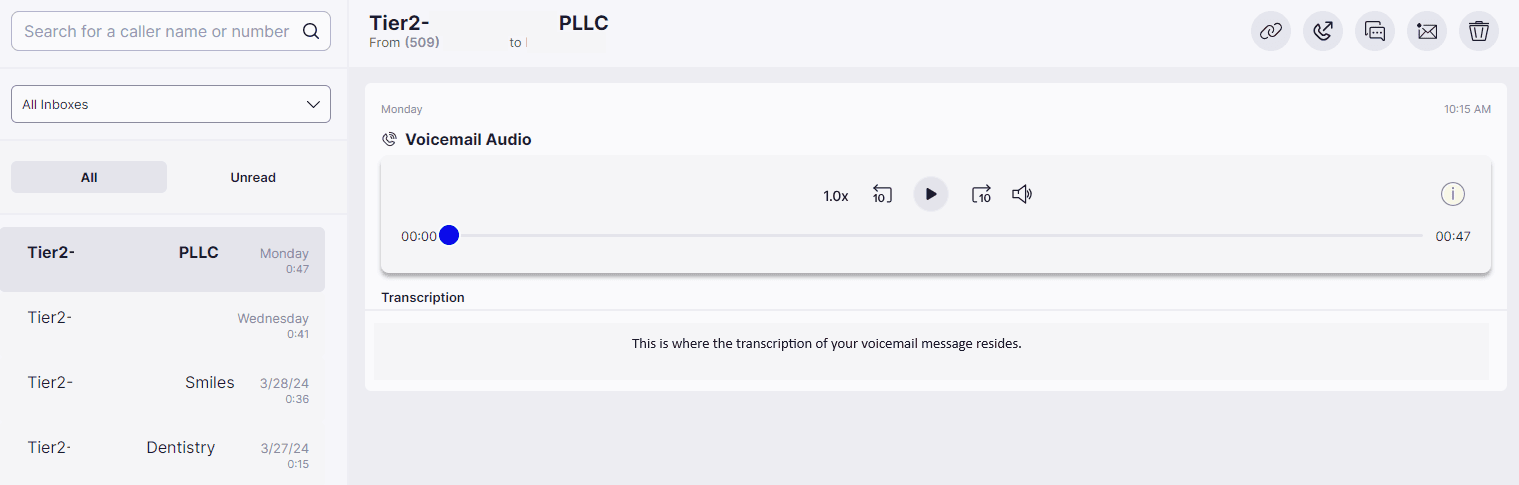
- If you have access to multiple voicemail boxes, select the dropdown under “All Inboxes” to filter based on mailbox.
- Unread (not yet listened to) voicemails will show in bold.
- Click the voicemail you want to listen to, and it will play in the right pane.
- If you have access to a Shared Voicemail, those messages will also appear here.
Related
For more information on accessing Mango Voice's Web App, visit How to Log into the Mango Voice Web App.
How do I get help?
- Mango Voice Support — Phone: (435) 466-2646
- Mango Voice Support — Email: support@mangovoice.com