
How Do I Transfer a Call?
The transfer feature allows a user to transfer a call to any valid extension. This can be an actual phone/user, or a Ring Group, Dial Plan, Call Queue, Voicemail, Conference Room, etc.
Transferring a call on a Yealink phone
Attended Transfer (XFER)
Also known as an attended transfer, this allows you to put the caller on hold, call the party who is going to receive the call, and announce that a call is being transferred (or not) prior to the call being transferred.
When on a connected call, either:
- Press Transfer → the Presencebutton (or dial the extension) → confirm the call with the remote party → press Transfer.
- Or press Transfer (some phone models display "XFER" or "TRAN"), dial the extension you want to transfer the call to, and notify the person receiving the transfer.
Blind Transfer (BXFER)
This allows you to transfer an active call directly to the receiving agent without making an announcement.
When on a connected call, either:
- Press the Presence button.
- Dial the extension → press Transfer.
- Press Transfer → the Presencebutton (or dial the extension) → press Transfer.
Transferring a call in the Web App
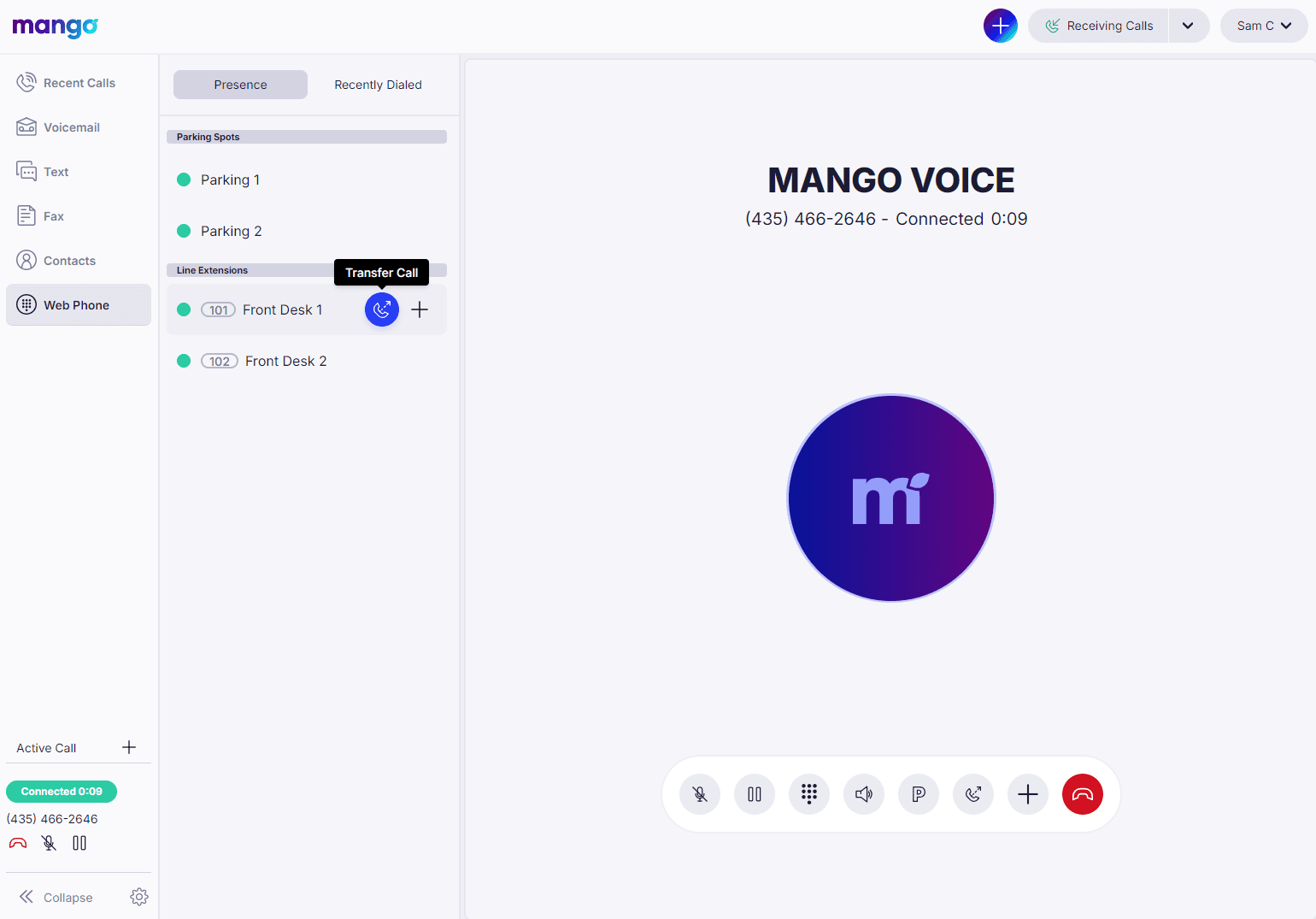
Blind Transfer to a Line Extension
Hover over the line extension you want to transfer to in the Presence panel, then click the blue Transfer Call button that appears.
Blind Transfer via Call Controls
Click the Transfer Call button in the call controls to open the transfer panel.
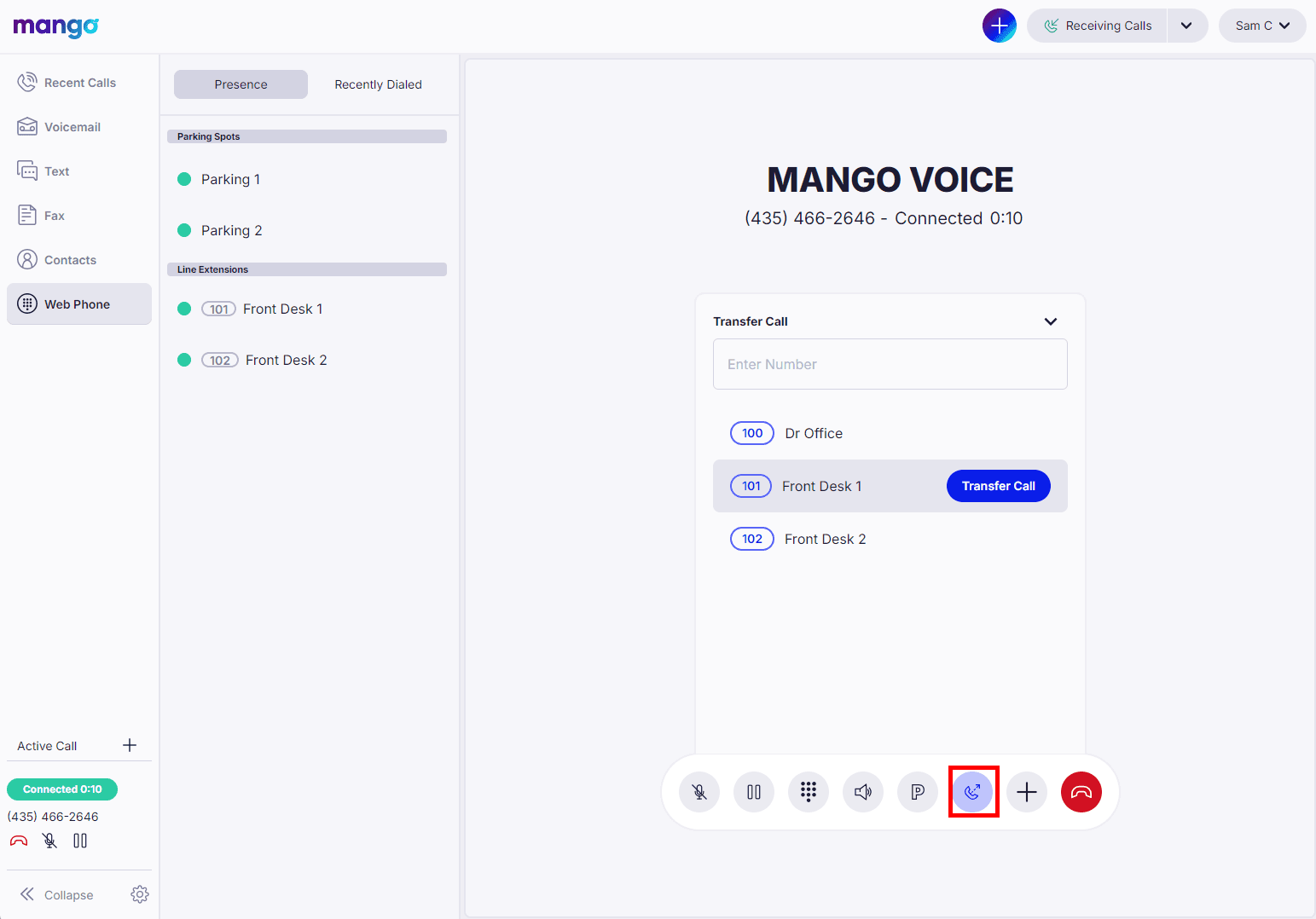
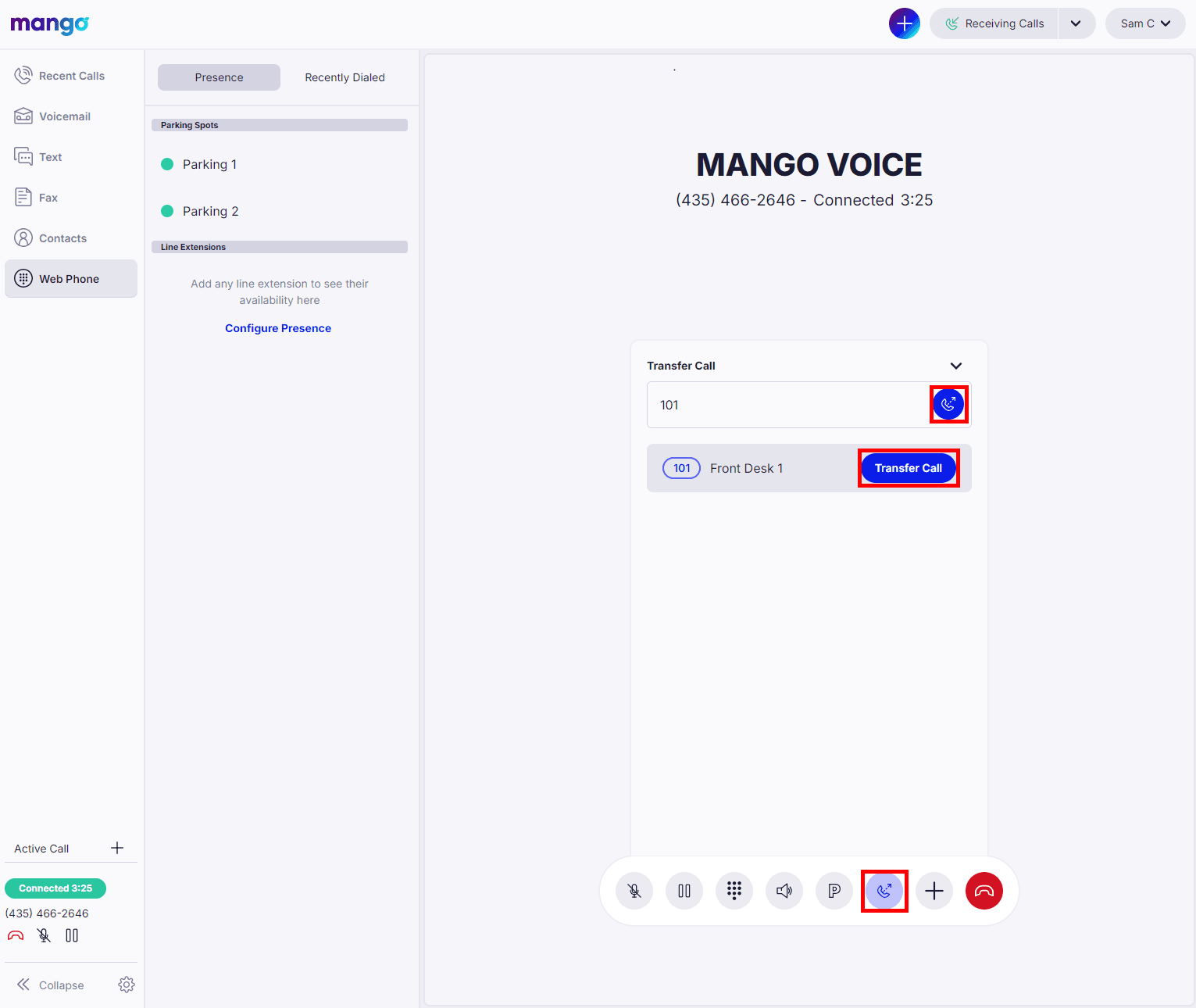
You can also type the extension number or phone number that you would like to transfer the call to. This can include Ring Groups, Switchboards, external numbers, etc. Click either blue button to transfer the call.
Warm (Attended) Transfer
A Warm Transfer is useful when you want to speak with the other phone before transferring the call to them — usually to make sure they're available and to explain why you're transferring the call.
- 1
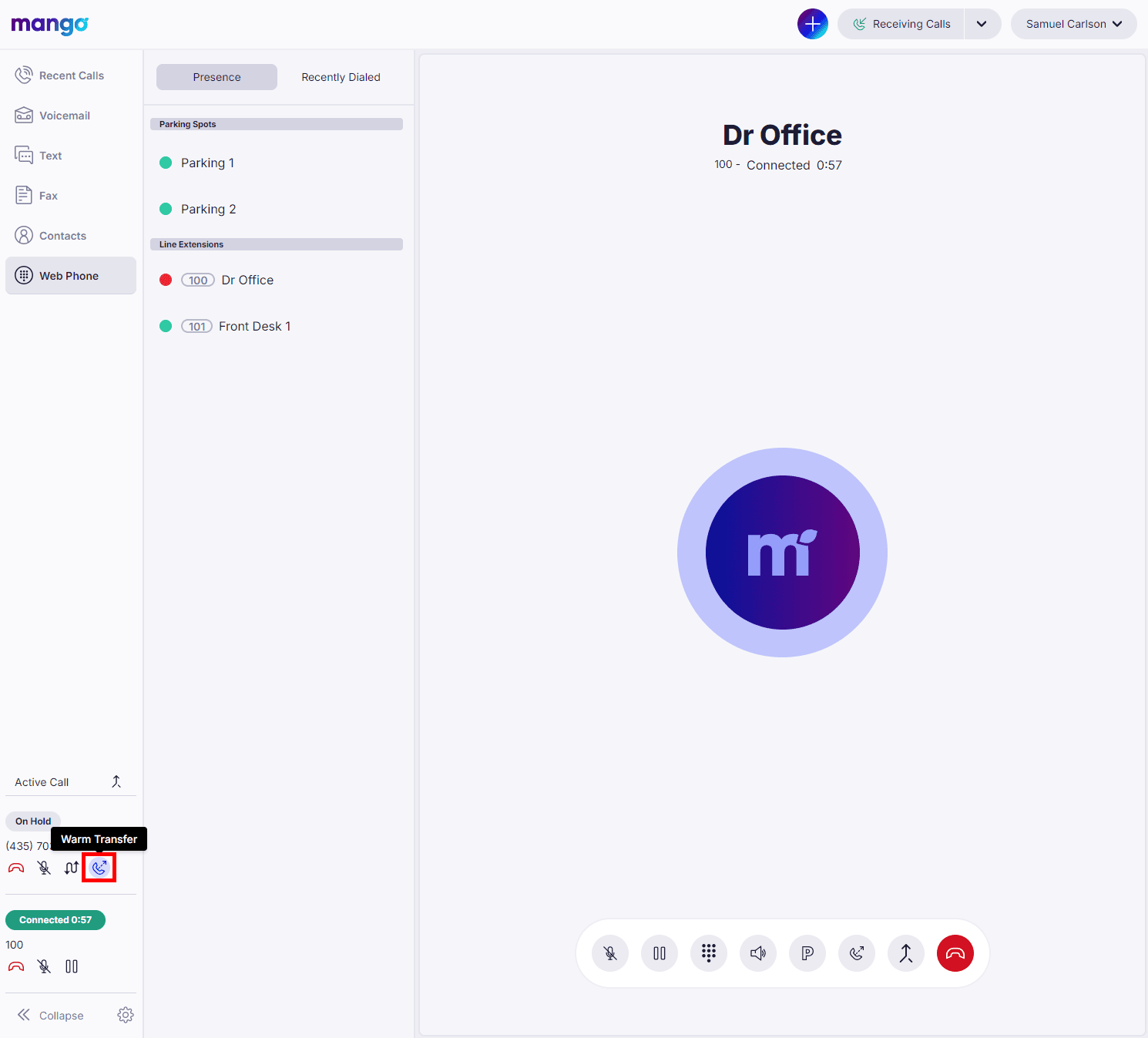
First, call the phone that you will eventually transfer the call to. This will place the initial call on hold. For instructions on adding a call, see Add, Merge & Split Calls in the Web App.
- 2
When you're ready to transfer the call, click the Warm Transfer button. Both calls will be removed from your view.
Still need help?
If a transfer isn't completing, confirm you're dialing a valid extension or number and that the receiving destination is available.
Visit the Support Center