
Call Logs Overview
Why use this?
Gain insights into your phone calls! See what’s happening and quickly identify important calls with our robust filtering system.
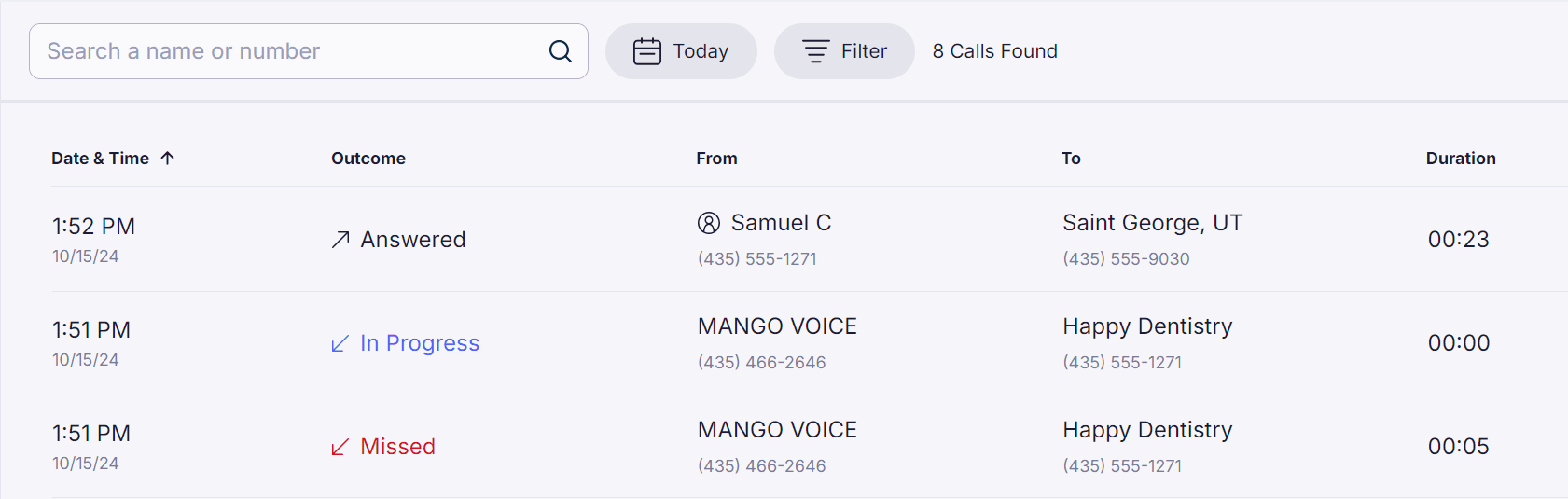
Filters
Search calls by name and number. Click the icon next to Filters to narrow down the calls by date.
Direction
- Inbound — Calls that came into the office.
- Outbound — Calls made to an external phone number by the office.
- Internal — Calls made to another phone within the office.
Outcome
- Answered — Calls answered by the office.
- Missed — Calls not answered by the office. The caller could have gone to voicemail, hung up, or been transferred to an external phone number.
Sentiment (Mango AI required)
Filter by the sentiment of the office and/or patient side of the call. Options are Positive, Neutral, and Negative. See Understanding Sentiment Analysis.
Statuses
- In Progress — The call is currently taking place.
- Completed — The call has finished and ended.
- Failed — The call failed to be placed. This can happen if an invalid phone number is dialed.
- Canceled — The caller hung up before the call was answered.
- Busy— The receiving phone number rejected the call because it’s busy.
Call Traits
- Voicemail Recorded — Call went to voicemail and a voicemail was left.
- Externally Transferred — Call was transferred to an external number. Usually this is an on-call doctor or an answering service.
Duration
Filter calls by length. Options are to show calls longer and/or shorter than 10 seconds, 1 minute, 5 minutes, and 10 minutes.
User
Select the calls that specific users were involved with.
Don’t forget to click Apply Filterswhen you’re done selecting your filters!
To quickly remove your custom filters, click Clear All and Apply Filters.
Call Details
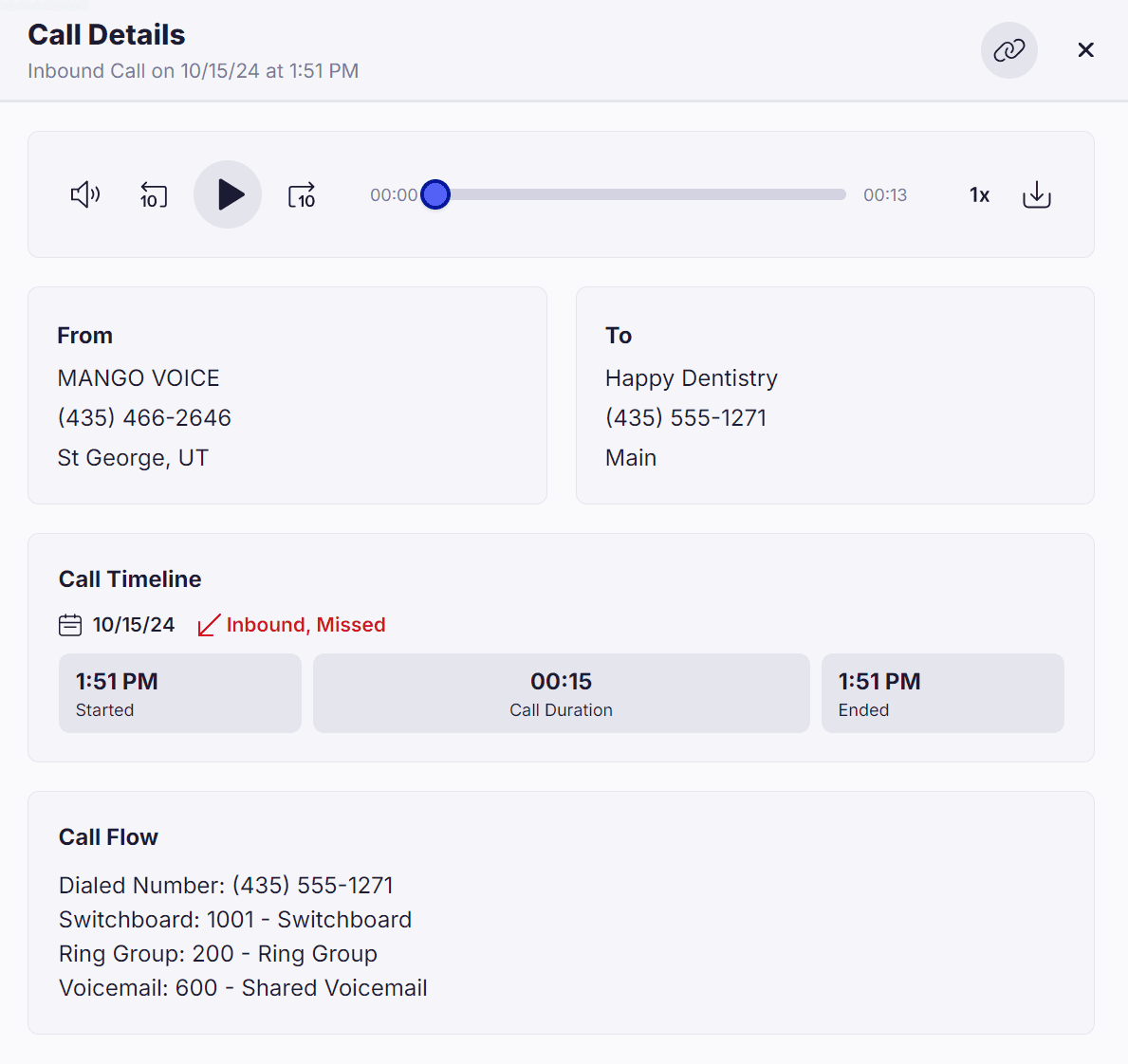
Click on a call to see more. Click the link icon to the right to copy a link to the call.
Recording
If call recording is enabled, click the play icon to listen to the call. Click the download icon to download the recording. If call recording is disabled, there will be the message No Recording Available.
From and To
See the Caller ID, phone number, and location of who’s calling. Office numbers will list the PBX name, phone number, and phone number name.
Hover to see options to call, message, fax, or block that number.
Call Timeline
See the start time, length, and end time of the call.
Call Flow
Shows the path that the call took.
Q&A
Why are some calls missing?
- To see all calls, your user must have permission level Portal Unrestricted or higher. To increase your permission level, please contact your account owner.
- You will always see the calls that your user was involved with (you answered or your phone rang).
How do I get help?
- Mango Voice Support — Phone: (435) 466-2646
- Mango Voice Support — Email: support@mangovoice.com