
1 min read·Last updated: 08.08.2024
Add, Merge& Split Calls in the Web App
The Mango Voice Web App lets you add a new call to an existing one, merge two calls so everyone can talk together, and split a merged call back apart. Here’s how each one works.
Add a Call
To add a new call to an existing call, click either Plus button.
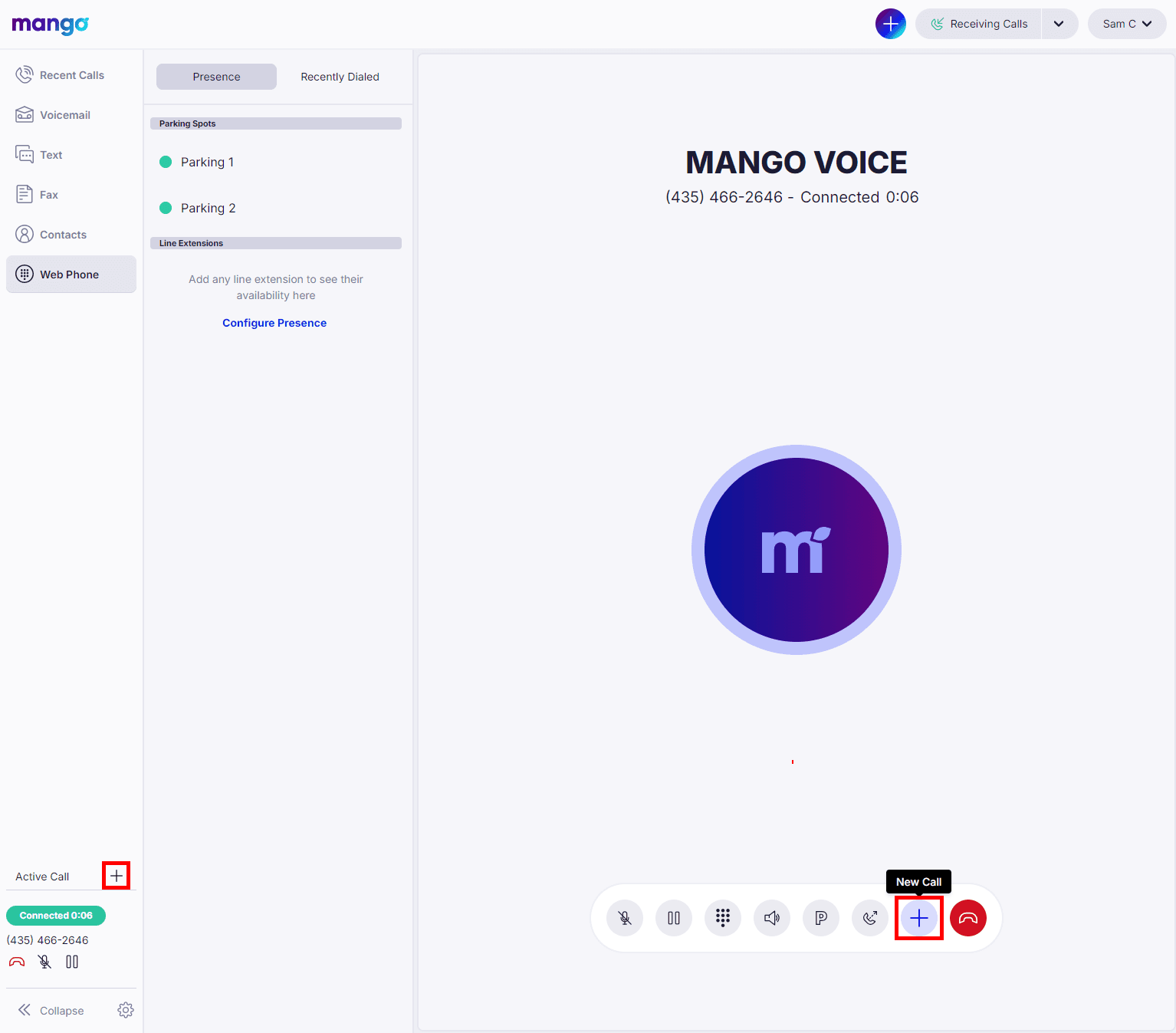
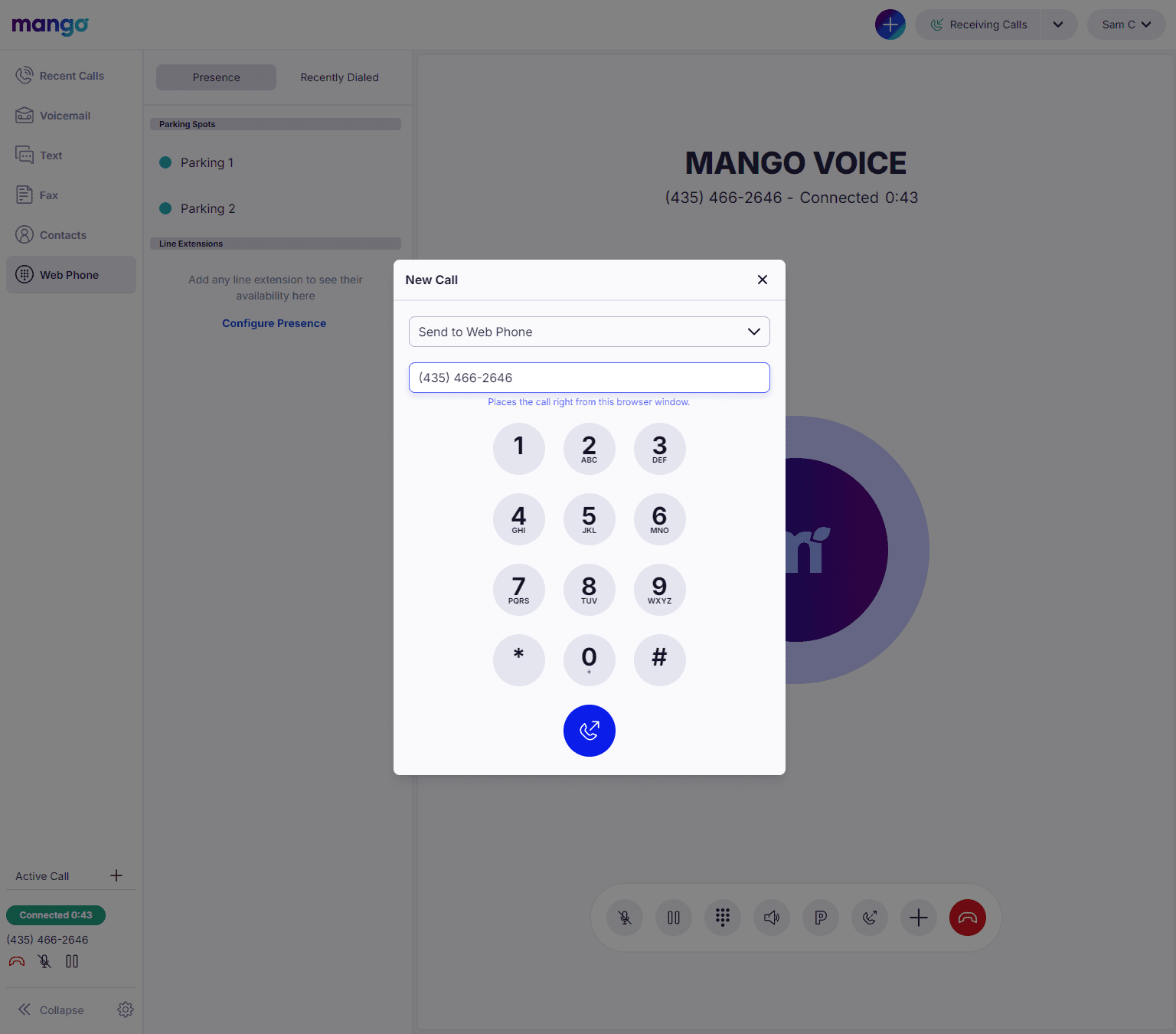
You will be prompted to enter the phone number or extension number that you want to call. You can also choose to send the call to your desk phone instead of the Web Phone.
Note: A call sent to the desk phone will not be available in the Web Phone to merge with.
Merge Two Calls
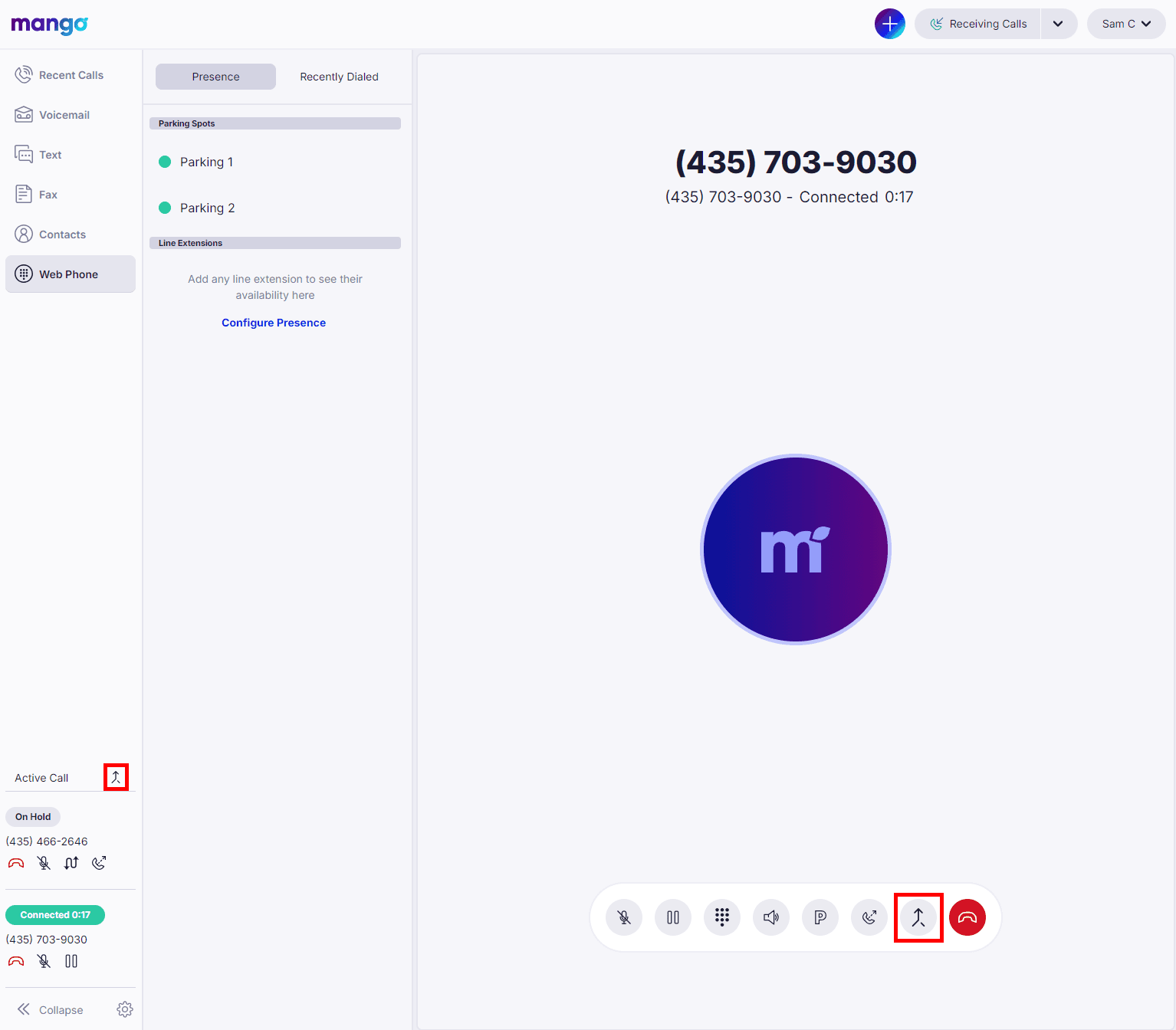
To merge two calls, click either Merge button. Now all three of you can talk to each other.
Split Two Calls
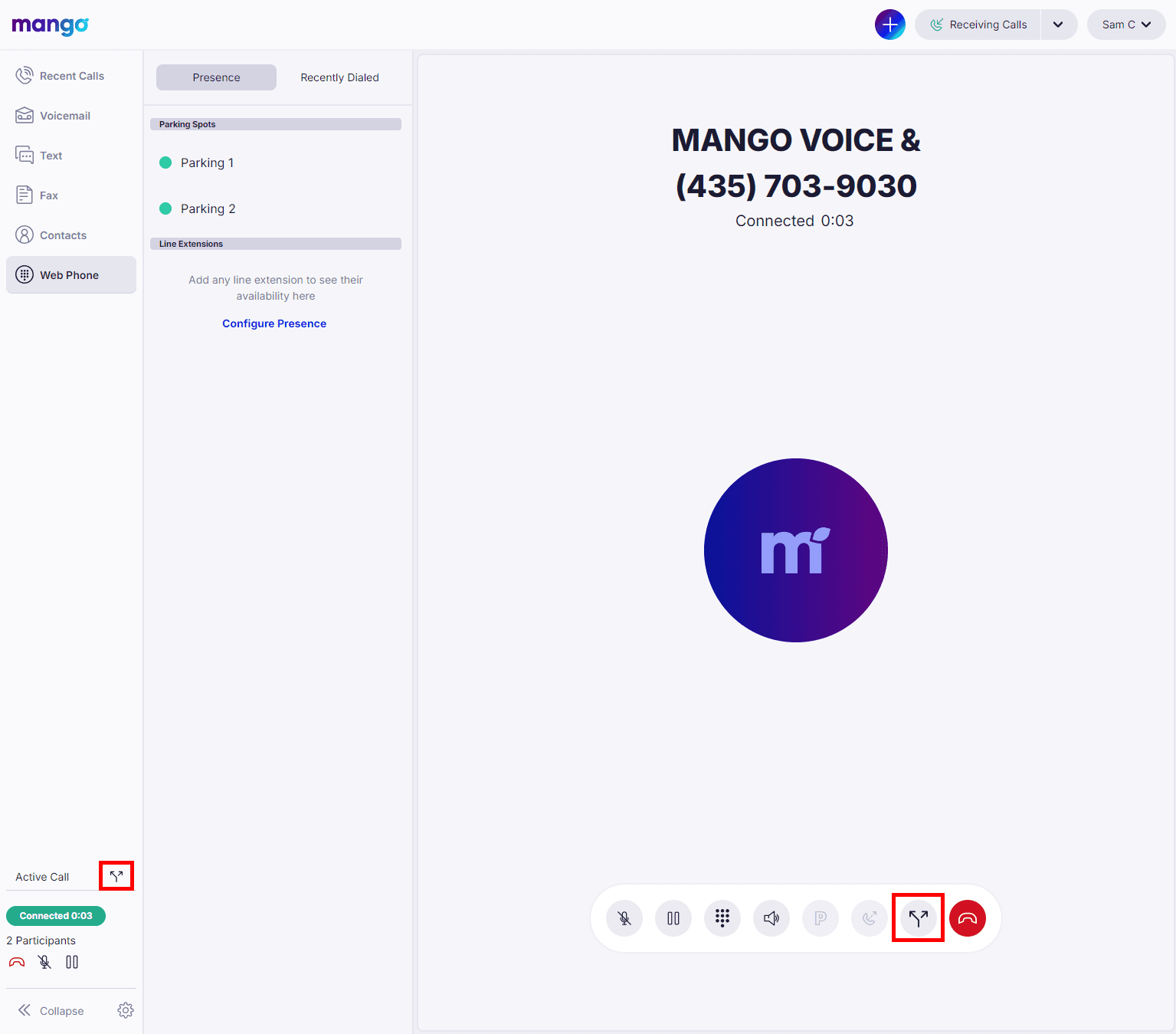
To split a merged call, click either Split button. The most recent call will still be active and the first call will be on hold.
How do I get help?
- Mango Voice Support — Phone: (435) 466-2646
- Mango Voice Support — Email: support@mangovoice.com