
1 min read·Last updated: 08.12.2024
Add Line Extension Presence to the Web App
Why use this?
When you enable presence you can easily view who is available, start internal calls, and transfer to extensions inside your PBX.
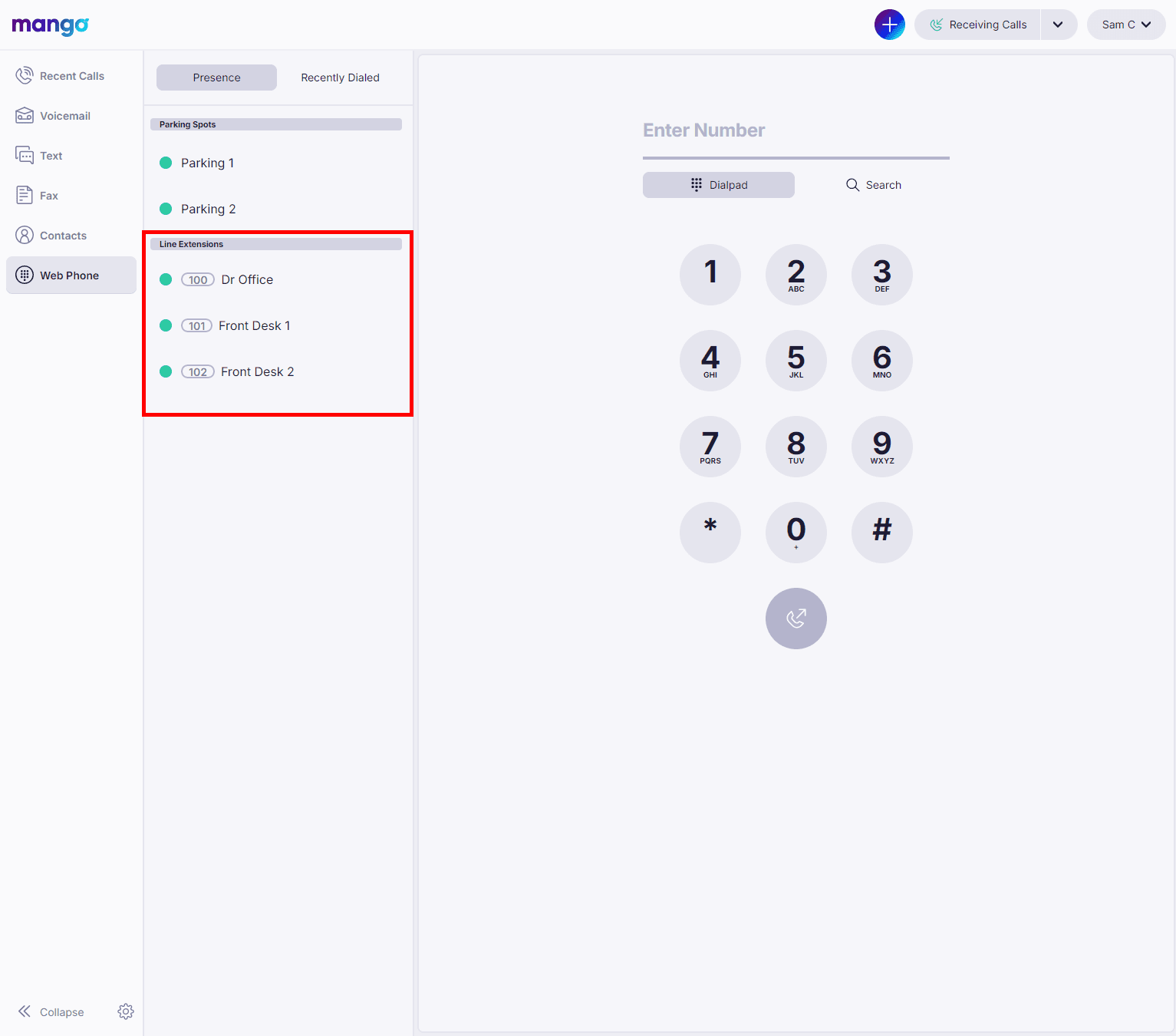
Configure Line Extension Presence
To configure Line Extension Presence in the Web Phone:
- Click on the Settings (gear icon) in the bottom left corner of the side navigation.
- Optional: You can use the gear icon next to the Line Extension section header.
- Optional: If you don't have any Line Extensions Presence, you can click Configure Presence.
- In Settings, click on Phone settings.
- Scroll down to the Presence section, then click Add Extension.
- Select the extension that you want to add to your Line Extension Presence list.
- Repeat the previous step for up to 10 extensions.
Q&A
What do the different colors mean?
- Gray: Unknown
- Green: Available
- Red: On a call
How do I get help?
- Mango Voice Support — Phone: (435) 466-2646
- Mango Voice Support — Email: support@mangovoice.com