
1 min read·Last updated: 07.30.2024
How to integrate and troubleshoot Flex Dental with Mango Voice
How do I set it up?
Setting up the Flex Dental integration is a two-step process:
- Mango Voice turns on Integrations in the PBX.
- The client (or Flex representative) creates the Flex ID.
Mango Voice
- In Mango Voice, go into the PBX Settings and enable Integrations.
Flex representative
- Login to Flex.
- Click the Settings (gear icon).
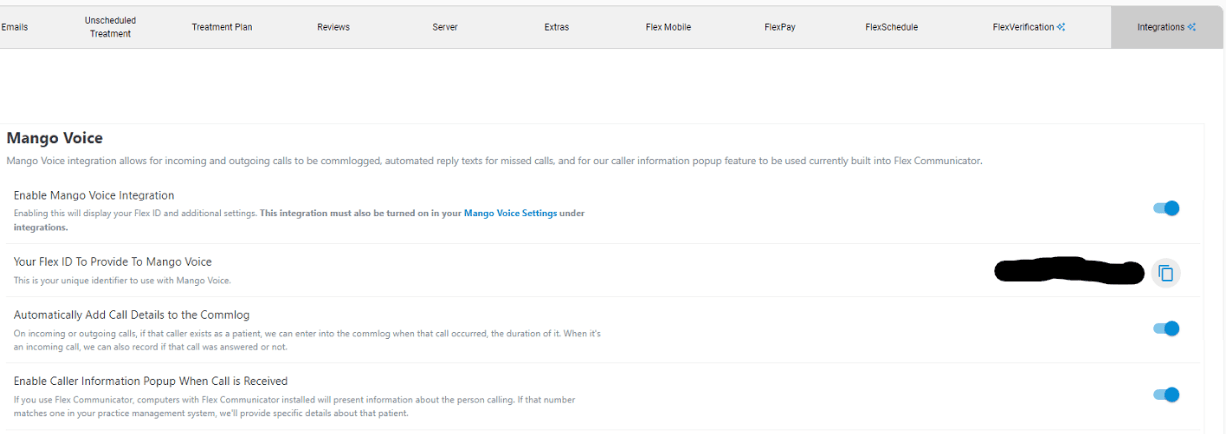
- Click on the Server tab (6th from the left).
- Click on Mango Voice Beta.
Once created, the Flex ID appears. Copy the Flex ID and paste it into the Integration section of the Mango Voice Web Portal.
After-hours text responses
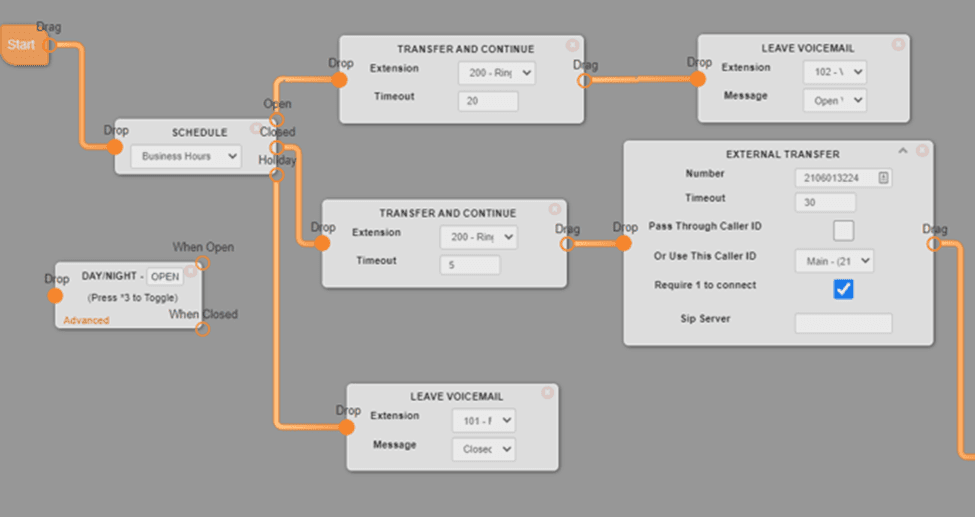
If a client wants to have Flex send a text message response to clients after hours, you must add a Transfer and Continue module to the Switchboard with a 5 second timeout before the call hits the Auto-Attendant or other module in that call flow. See the example below.
How do I get help?
- Flex Support: flex.dental/contact-us
- Mango Support — Phone: 435-GoMango
- Mango Support — Email: support@mangovoice.com