
Call Analytics and Summaries
Gain insights and elevate your team. See what happened at a glance and quickly find problem calls. Log into app.mangovoice.com/calls and click on a call to view the Call Details.
Note: Call Recording must be enabled in order for us to analyze your calls. Depending on your state, patients may need to consent in order to record their calls. See How to Enable Call Recording.
Supported Languages
| Language | Transcription | Summary | Sentiment Analysis | Call Statistics |
|---|---|---|---|---|
| English | ||||
| Spanish | Not supported | |||
| French | Not supported | |||
| Chinese, Simplified | Not supported |
Other languages may also be supported.
Call Visualizer
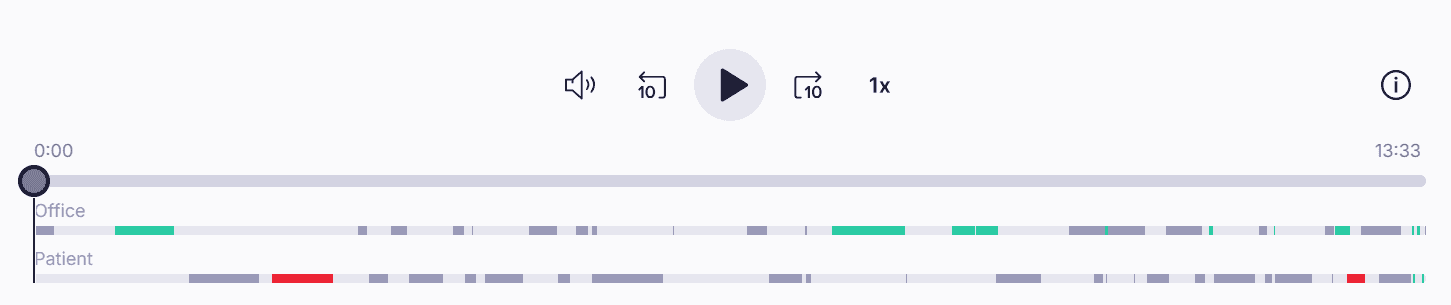
Below the Call Recording, there are two additional lines:
- Office sentiment throughout the call
- Patient sentiment throughout the call
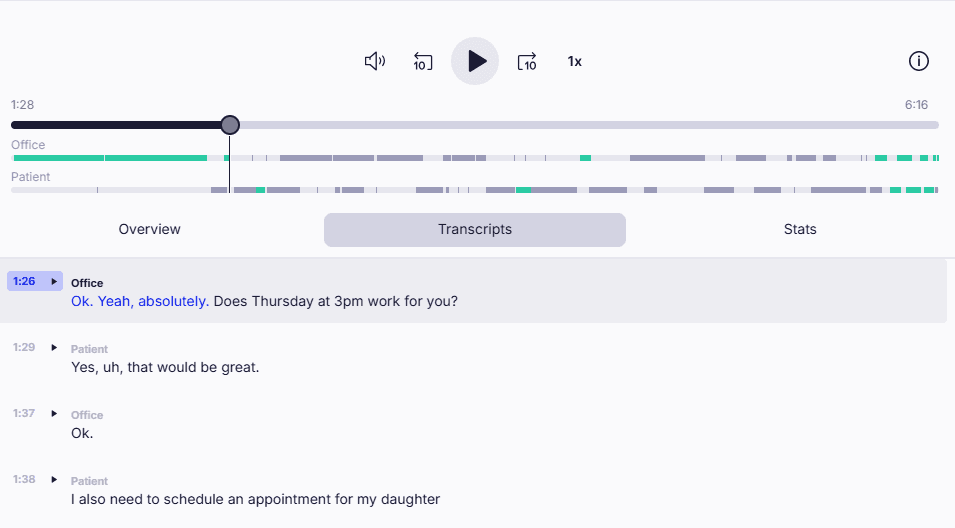
Negative sentiment is red, neutral sentiment is dark gray, positive sentiment is green, and silence is light gray. As you go through the recording, the transcript will update to the corresponding spot. See the Transcripts section below.
Overview
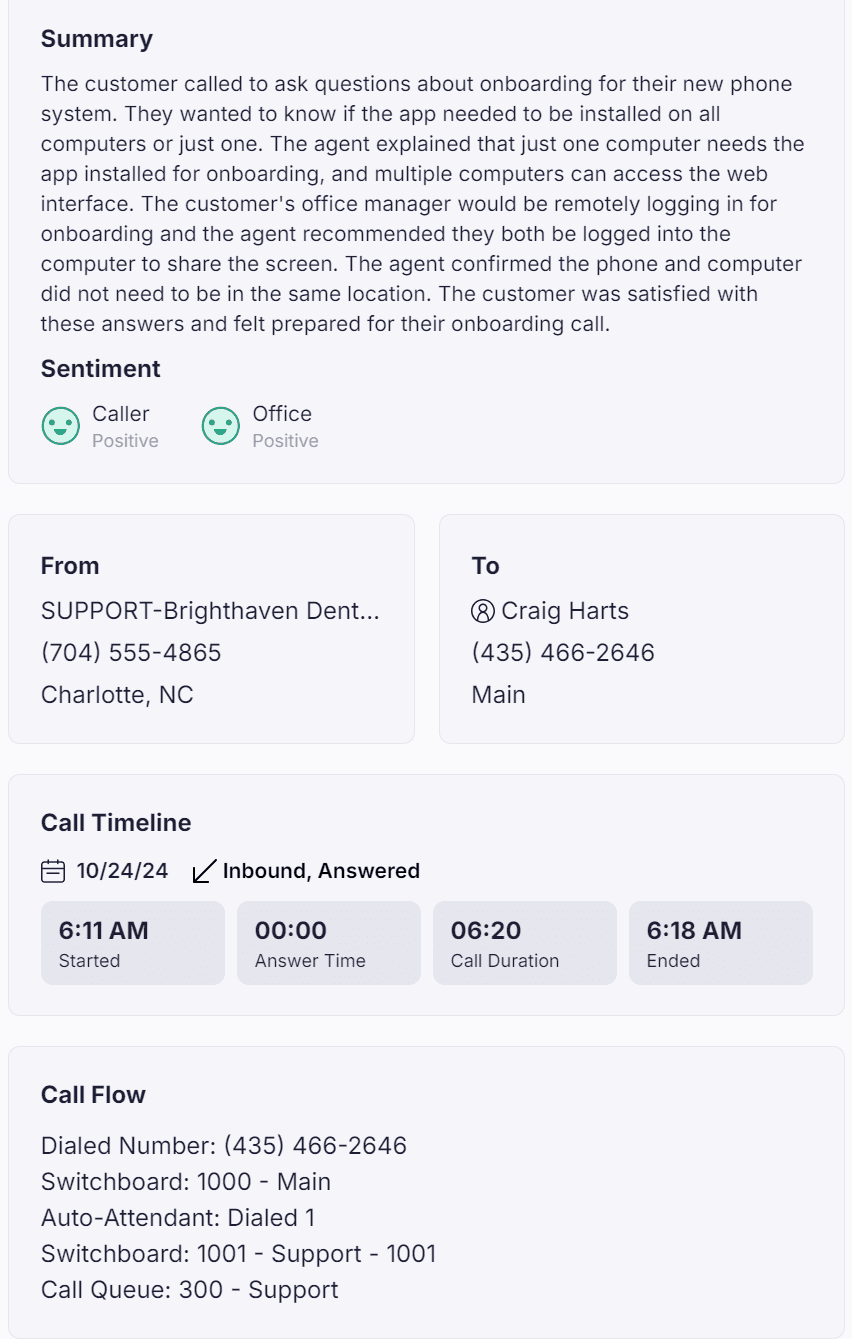
- Summary: AI-generated summary of what was discussed during the call. Hover to rate or copy the summary.
- Sentiment: The overall sentiment of the caller and office. Possible sentiments are Positive (green), Neutral (gray), and Negative (red). See Understanding Sentiment Analysis.
- From and To: Shows who initiated the call and who answered. Hover to see options to Call, Fax, Text, or Block the number.
- Call Timeline: Shows the date and outcome of the call. Calls can be filtered by outcome and much more in the Calls list.
- Call Flow: Lists the path that the call took.
Transcripts
As you listen or scrub through a call, the transcript will turn blue. You can also click the play button next to a section to start listening at that time.
We try our best to provide accurate transcriptions, but there may be errors.
Personally Identifiable Information (PII)
For your and your patients' security, we try our best to exclude PII from the transcripts. These sections of the transcript will be replaced with [PII]. Currently only available for English and Spanish.
Stats
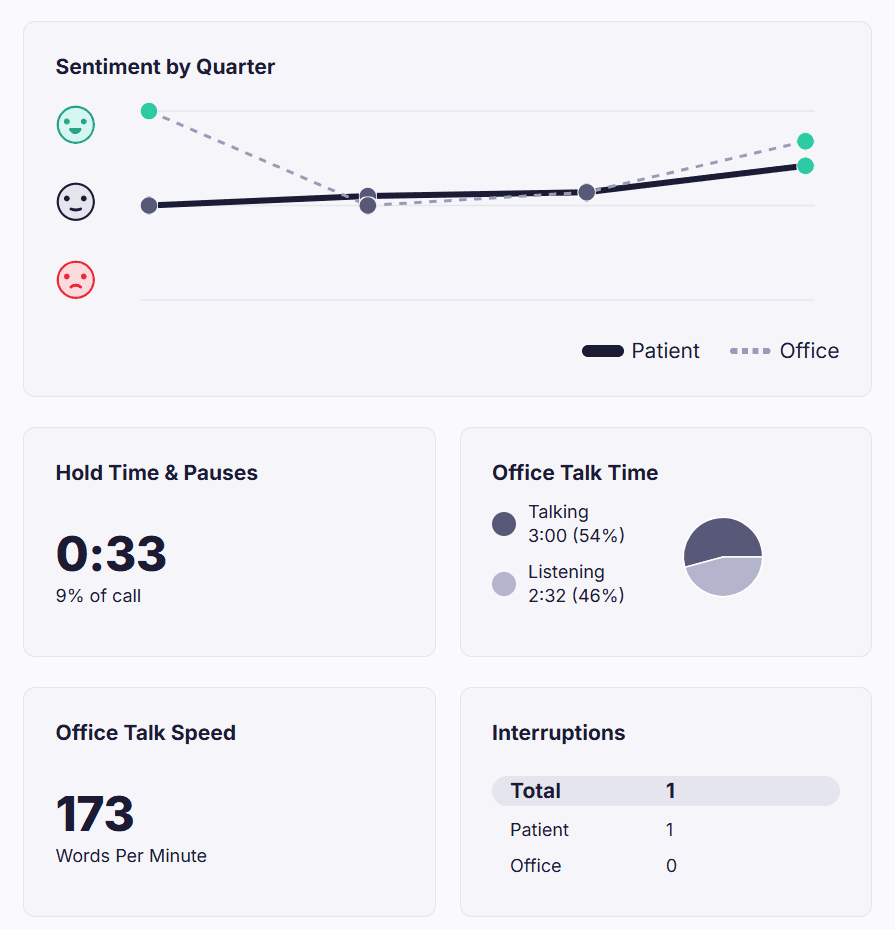
- Sentiment by Quarter:View the progression of the sentiment score of both the caller and office. Even if a patient starts off feeling negative, it's important that they end the call on a positive note.
- Hold Time & Pauses:Shows how much of the call was silence. If it's a large percentage of the call, it may indicate that the office wasn't prepared to promptly handle the patient's needs. "Fill" phrases such as "I'm looking that up now" can help patients feel like they aren't being ignored. A long hold time may also result from a long introductory message at the beginning of the call.
- Office Talk Time:How much of the call was the office talking vs listening. If the office is dominating the phone call, the patient may feel like they aren't being understood.
- Office Talk Speed:Talking too fast can lead to miscommunication and may sound unprofessional. It's important that patients feel comfortable listening to the office and understand them.
- Interruptions: If the patient or office is cut off mid-sentence, it will be marked as an interruption. These should be minimized as much as possible. If the office is interrupted, they should stop and listen to the patient. Listening helps build trust and rapport and helps them feel heard.
Q&A
Why isn't there an analysis for some calls?
- Calls that aren't answered, internal calls, or calls that are longer than an hour are not analyzed.
- The call may still be undergoing analysis. Processing time for the summary and transcription may exceed the length of the call.
- If Call Recording is disabled, then the call will not be analyzed.
Why isn't there a summary for a call even though it was analyzed?
- If a call is too short or there wasn't much talking, there may not be enough data in the call to generate a summary.
- Currently only English calls are summarized.
Can I search for calls that contain a keyword in the transcript or summary?
Yes! Enter a word or phrase in the search bar in the Calls tab of the Web App. The list of calls will be filtered by those that have that word or phrase in the Call Summary or Transcript.